iPhone Customization Guide: Every Option in iOS 18
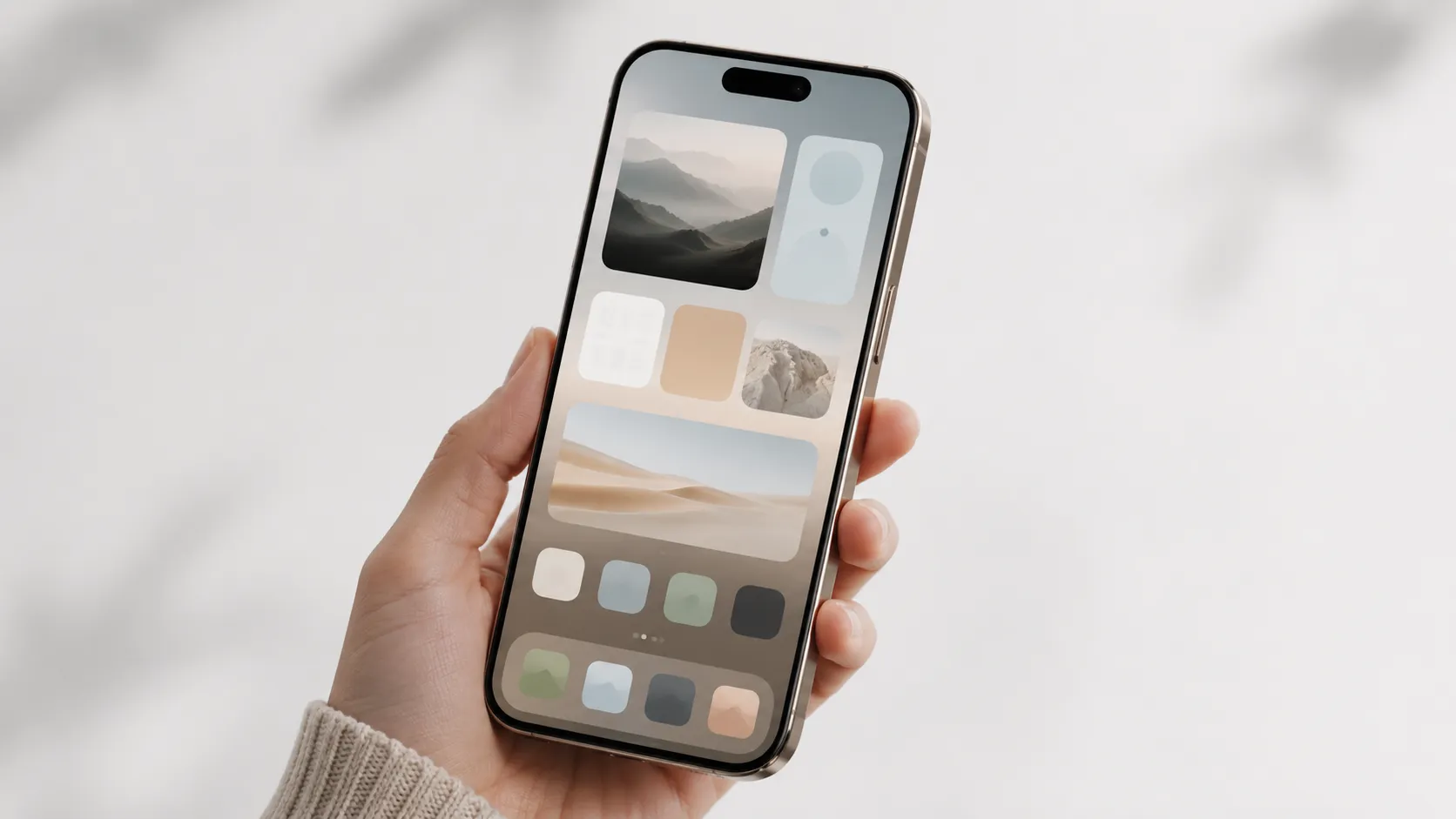
iOS 18: What Changed for iPhone Customization
Key Takeaways: iOS 18 introduced free-form icon placement, label removal, and system-wide icon tinting. The Shortcuts app enables fully custom app icons with a 1-2 second launch trade-off. Widgy handles transparency effects and complex widget layouts. Each Focus Mode carries its own lock screen and home screen. Android retains advantages in launcher replacement, but iOS 18 closes most practical gaps for users who want personalization without a full theming project.
iOS 18 adds free-form icon placement, system-wide icon tinting, label removal, and widget stacking - more native customization options than any previous iOS release. For years, iPhone owners watched Android users rearrange icons freely, apply launchers, and theme entire operating systems while iOS kept everyone in a rigid grid. iOS 18, released in September 2024, changed that calculus more than any update since iOS 14 introduced widgets to the home screen. This guide covers every native and third-party method available right now, including what works, what is more trouble than it is worth, and where Android still has an edge.
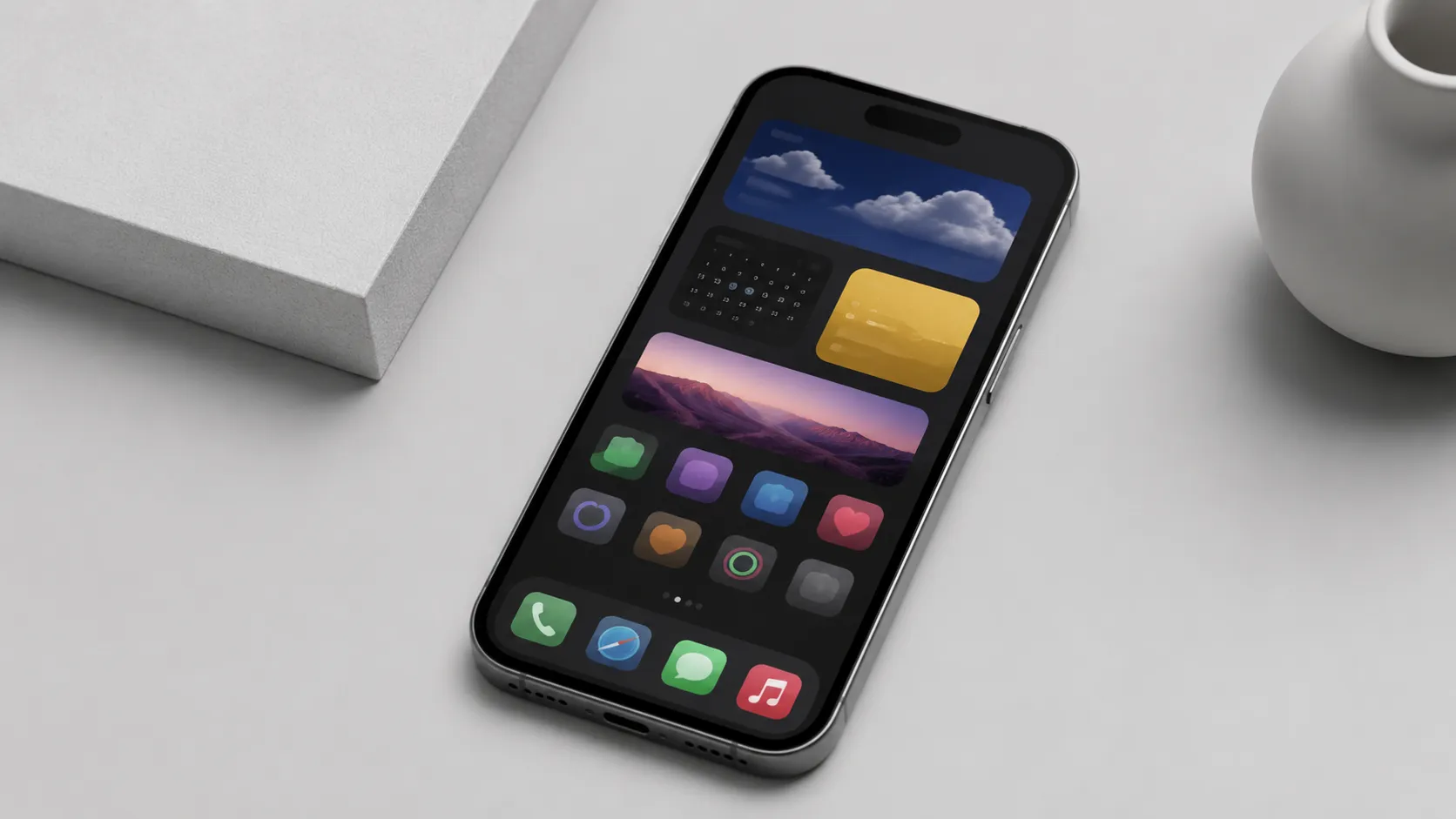
Mastering the iOS 18 Home Screen: Icons, Widgets, and Free-Form Layouts
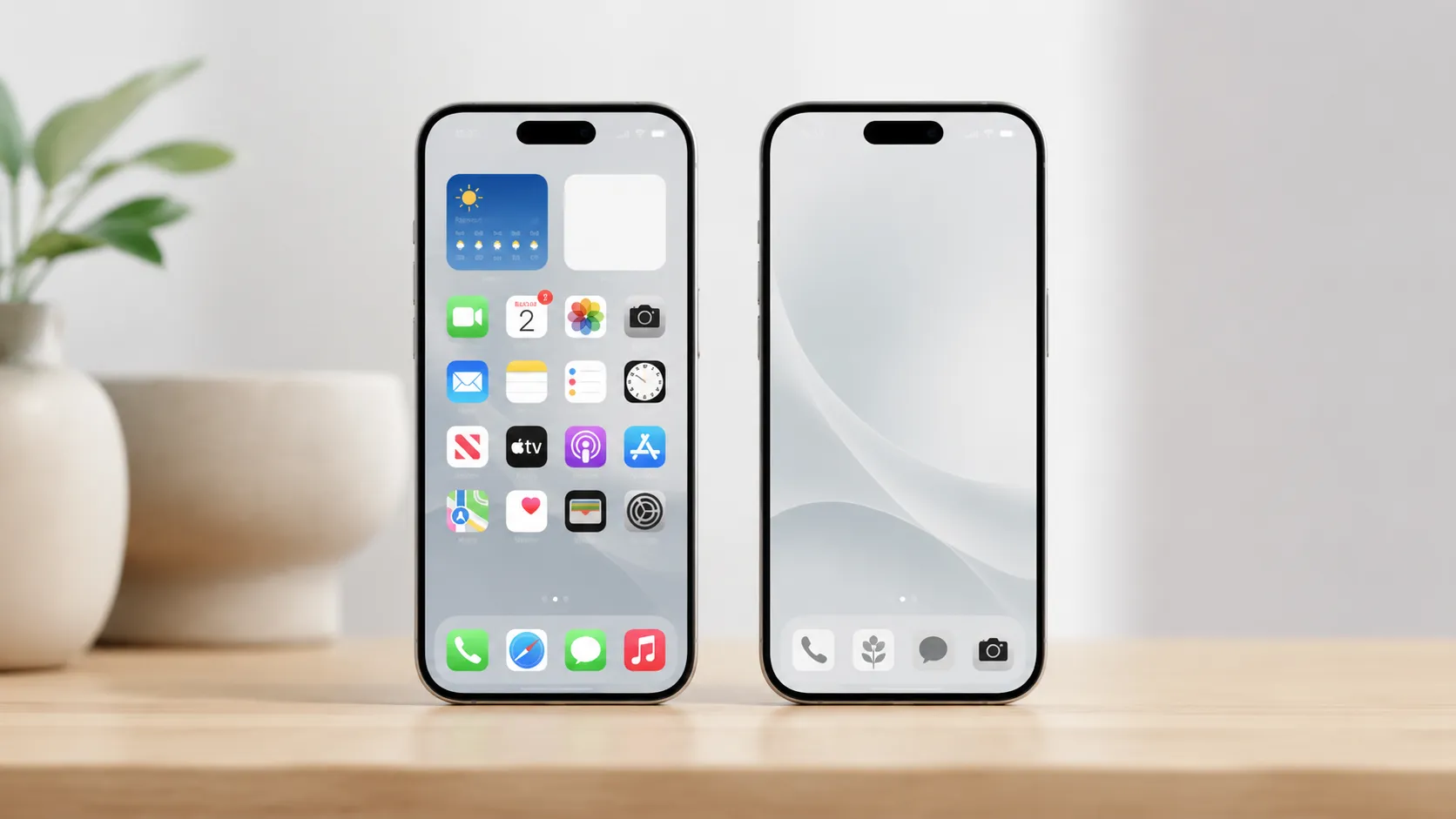
The iOS 18 home screen offers free-form icon placement, icon tinting, label removal, and widget stacking - all available without any third-party app.
Free-Form Icon Placement
Prior to iOS 18, every app icon snapped to the top-left of the grid and filled in sequentially. That constraint is gone. To place icons freely:
- Long-press any blank area of the home screen to enter jiggle mode.
- Tap the Edit button (top-left) and select Customize.
- Drag any icon to a non-adjacent position, leaving deliberate gaps.
- Press Done to save the layout.
This single feature is what many users had been requesting since the original iPhone. A single-page layout with apps clustered at the bottom, leaving the top two-thirds for a wallpaper, is now trivially achievable.
Removing App Labels and Tinting Icons
In iOS 18, Apple added two icon appearance modes accessible from the same Customize panel: Dark and Tinted. Dark mode applies system-adaptive dark variants of app icons where developers have provided them. Tinted applies a single hue across all icons, which you control with a color picker. You can also toggle off labels entirely for a cleaner look.
Hands-on testing shows that tinted icons work best with a desaturated or monochrome wallpaper. When the wallpaper uses warm tones, iOS 18 suggests a matching tint automatically, though you can override it. The tinted-icon feature reduces the need for the elaborate Shortcuts-based custom icon setups that dominated aesthetic communities between iOS 14 and iOS 17.
Widgets: Stacking, Smart Rotation, and Sizing
Widgets arrived in iOS 14, but iOS 18 refines the experience. You can stack up to 10 widgets of the same size in a single slot and swipe between them. Smart Stack rotation uses on-device intelligence to surface the most relevant widget based on time, location, and usage patterns.
To add a stacked widget:
- Long-press the home screen and tap the plus (+) button.
- Add a widget of any size (small, medium, or large).
- Drag a second widget of the same size directly onto the first.
- A stack is created automatically. Tap the stack to reorder or enable Smart Rotate.
macOS customization guide for desktop theming ideas that complement your iPhone setup
Personalizing the Lock Screen: Wallpapers, Widgets, and Focus Pairings
iOS 18 enhances lock screen personalization with new wallpaper options, expanded widget support, and Focus Mode integration. The lock screen received its biggest overhaul in iOS 16 and has continued to gain options through iOS 18, making it a genuinely expressive surface rather than just a clock over a photo.
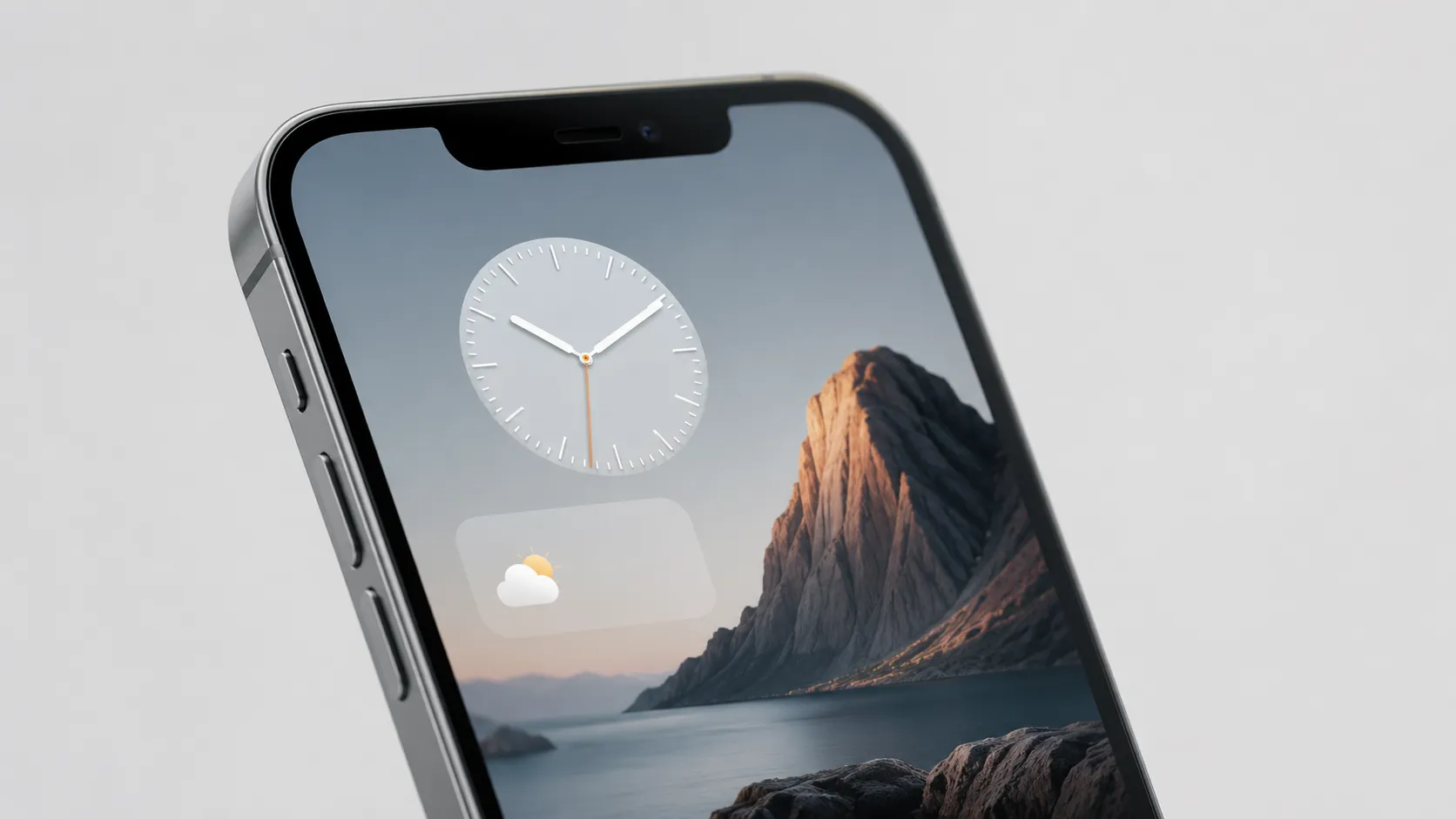
Setting Up a Custom Lock Screen
- Long-press the lock screen to open the wallpaper gallery.
- Tap the plus (+) to create a new lock screen, or tap Customize on an existing one.
- Choose a photo, gradient, emoji pattern, or one of Apple’s animated weather/astronomy options.
- Tap the clock to change its font and color from 8 font styles and a full color picker.
- Tap the widget areas above and below the clock to add up to 4 small widgets or 1 rectangular widget.
- Tap Add to save, then Set as Wallpaper Pair to also apply a coordinated home screen.
Available lock screen widgets in iOS 18 include Calendar, Clock (for a second time zone), Weather, Fitness rings, Battery, and third-party options from apps like Fantastical and Carrot Weather.
Depth-Effect Wallpapers
Depth-effect wallpapers place the clock behind a foreground subject in a portrait photo. iOS detects the subject automatically using the same machine-learning segmentation that powers Portrait mode. Not every photo qualifies. If the effect is not offered, the subject either lacks sufficient contrast from the background or the image resolution is too low.
Pairing Lock Screens with Focus Modes
Focus is a feature introduced in iOS 15 that filters notifications by context. Each Focus can be assigned a dedicated lock screen and home screen, so switching from Personal to Work mode changes your entire visual environment automatically. This is one of the most underused features in iOS. Setting up three Focus-paired lock screens takes about 10 minutes and replaces the need for any third-party automation.
Advanced Customization: Shortcuts, Widgy, and Third-Party Apps
Beyond native tools, Shortcuts and third-party apps like Widgy enable custom app icons and advanced widget layouts in iOS 18.
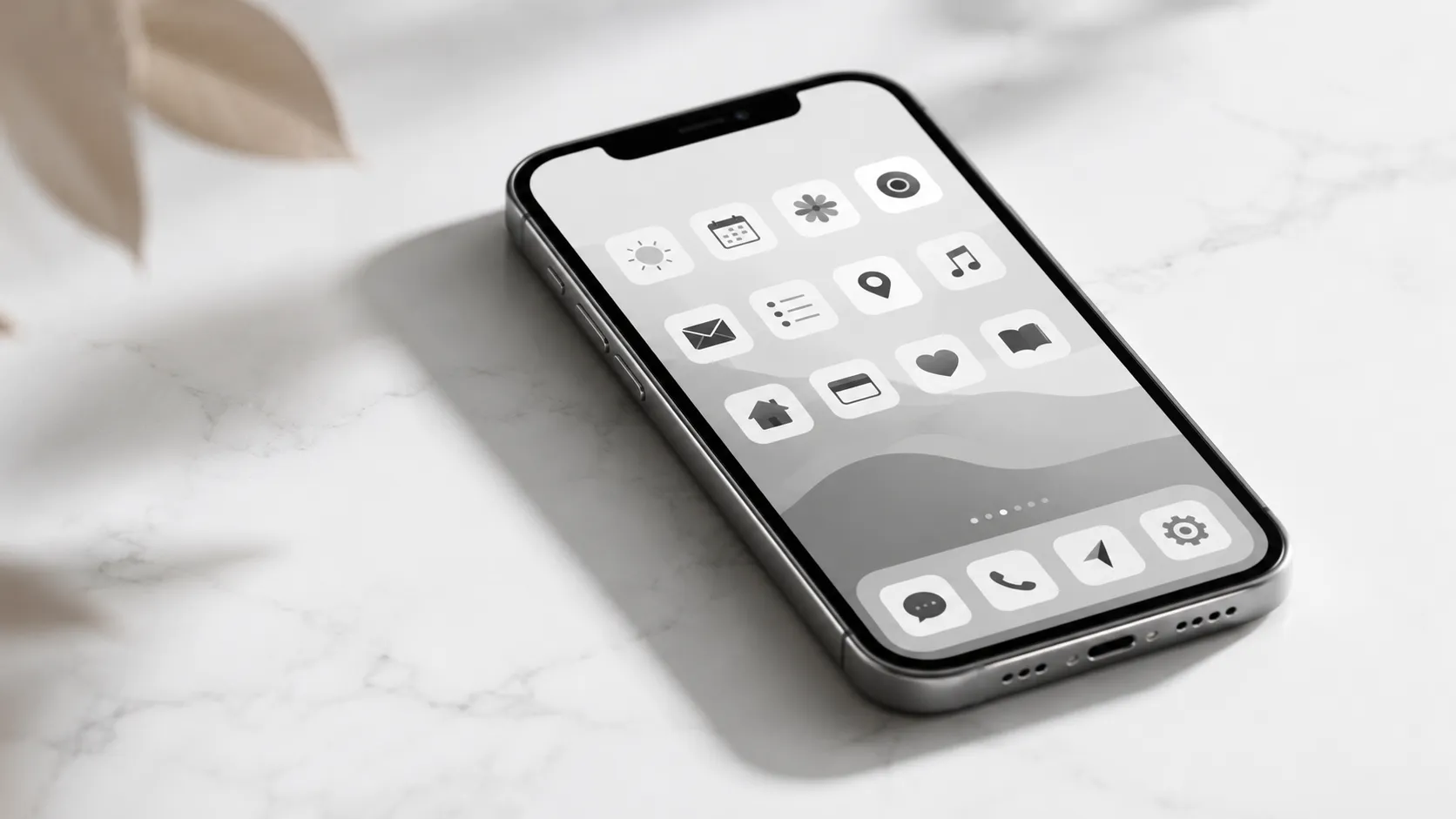
Custom App Icons via Shortcuts
The Shortcuts app (built into iOS, no download required) lets you create a home screen bookmark that opens any app and displays a custom image as its icon. The process:
- Open Shortcuts and tap the plus (+) to create a new shortcut.
- Tap Add Action, search for “Open App”, and select the target app.
- Tap the shortcut name at the top, then Add to Home Screen.
- Tap the icon thumbnail and choose a photo from your library.
- Name the shortcut (this becomes the visible label), then tap Add.
The limitation is real and worth stating plainly: tapping the icon opens Shortcuts briefly before launching the app, adding roughly 1-2 seconds to every launch. Many users who set up elaborate custom icon grids between iOS 14 and iOS 17 eventually reverted because the friction accumulated over hundreds of daily taps. With iOS 18’s tinted icons now available, the Shortcuts method is best reserved for a handful of icons where a specific image matters more than launch speed.
Widgy: Transparent and Custom Widgets
Widgy is a third-party widget app (free with in-app purchases) that supports transparency effects, custom fonts, and complex multi-element widget layouts that Apple’s native widget API does not allow. A transparent widget creates the illusion that the home screen wallpaper shows through the widget area, giving a floating-text effect. Achieving true transparency requires matching the widget background color to the wallpaper exactly, which Widgy automates with a wallpaper-capture tool.
Widgy works on iOS 14 and later. The learning curve is steeper than native widgets, but the visual payoff for aesthetic-focused setups is substantial.
Minimalist and “Dumb Phone” Approaches
An emerging niche in the customization community goes the opposite direction: stripping the iPhone down to a minimal surface to reduce the psychological pull of constant notification-checking and reflexive app-opening. Users who find themselves picking up their phone out of habit rather than intention use this approach to add deliberate friction. Apps like Dumb Phone (available on the App Store) replace the standard home screen with a text-only list of essential apps, mimicking the interface of devices like the Light Phone II. This is not a true launcher replacement (iOS does not permit that), but it functions as the default opening screen via a Shortcuts automation that triggers on unlock.
iPhone 16 Pro review and specs if you are choosing a new device to customize
iOS 18 vs. Earlier iOS Versions: What Changed and When
iOS 18 introduces significant customization features compared to previous versions, building on updates from iOS 14, 16, and 17. Understanding the version history matters because not every iPhone can run iOS 18, and some customization features were introduced incrementally.
| Feature | First Available | iOS Version | Notes |
|---|---|---|---|
| Home screen widgets | iOS 14 (2020) | 14.0+ | Small, medium, large sizes |
| Lock screen widgets | iOS 16 (2022) | 16.0+ | Above/below clock slots |
| Free-form icon placement | iOS 18 (2024) | 18.0+ | Grid gaps allowed |
| Icon tinting and dark icons | iOS 18 (2024) | 18.0+ | System-wide color picker |
| Label removal | iOS 18 (2024) | 18.0+ | Per home screen page |
| Focus-paired home screens | iOS 16 (2022) | 16.0+ | Per Focus mode |
| Interactive widgets | iOS 17 (2023) | 17.0+ | Tap actions without opening app |
The jump from iOS 13 to iOS 14 was the first major customization leap. iOS 18 is the second, and it represents the current ceiling for what Apple supports natively on supported hardware.
Apple’s 2025 hardware announcements and what new iOS features to expect
iPhone (iOS 18) vs. Android: A Detailed Customization Comparison
While Android offers deeper system-level customization, iOS 18 significantly narrows the gap, providing strong personalization options with greater consistency across supported devices.
The table below maps verifiable capabilities across both platforms as of mid-2025.
| Capability | iPhone (iOS 18) | Android (varies by OEM) | Edge |
|---|---|---|---|
| Third-party launchers | Not supported | Fully supported | Android |
| Free-form icon placement | Yes (iOS 18+) | Yes (most versions) | Tie |
| System-wide font change | No | Yes (Samsung, others) | Android |
| Widget flexibility | Good (limited shapes) | Higher (KWGT, etc.) | Android |
| Icon tinting | System-wide (iOS 18) | Varies by launcher | Tie |
| Lock screen widgets | Yes (iOS 16+) | Varies | Tie |
| Custom app icons (native) | Via Shortcuts only | Via launcher directly | Android |
| Security and update consistency | Stronger, 5-6 years | Fragmented | iPhone |
Android wins on raw customization depth, particularly for users who want to replace the launcher entirely or apply system fonts. iPhone wins on consistency: every iPhone 12 or later can run iOS 18, and the customization features work identically across all supported devices. The gap has narrowed meaningfully since iOS 14, and for most users who want a personalized but functional phone rather than a theming project, iOS 18 is now sufficient.
Troubleshooting Common iPhone Customization Problems
Common iOS 18 customization issues, such as lock screen wallpaper bugs or shortcut icon reverts, have specific troubleshooting steps.
Lock Screen Wallpaper Won’t Change
This bug was documented on iOS 16.2 and has appeared in isolated reports on later versions. If tapping a new wallpaper in Settings > Wallpaper does not apply to the lock screen:
- Long-press the lock screen directly (not via Settings).
- Swipe to the affected wallpaper and tap Customize.
- Re-select the photo and tap Done, then Set as Wallpaper Pair.
- If the issue persists, restart the iPhone and repeat.
Custom Shortcut Icons Reverting
If Shortcuts-based icons lose their custom image after an iOS update, the shortcut itself is intact but the home screen bookmark may have lost its association. Delete the bookmark from the home screen and re-add it from the Shortcuts app using the Add to Home Screen option.
Widgets Showing “Loading” Indefinitely
This typically indicates a background app refresh issue. Go to Settings > General > Background App Refresh and confirm it is enabled for the relevant app. If the widget belongs to a third-party app like Widgy, force-quit the app and re-add the widget.
Tinted Icons Appearing Inconsistent
Not all developers have submitted dark or tinted icon variants to Apple. When a tinted icon variant is missing, iOS 18 applies an automatic tint to the original icon, which can look washed out. There is no user-side fix. The only option is to use the Shortcuts method to assign a custom image for that specific app.
Halide Mark II review for shooting the custom wallpaper photos your setup deserves
Aesthetic Ideas: Four Setups Worth Trying
Explore four practical iOS 18 customization setups: Minimal Monochrome, Productivity Dashboard, Aesthetic Photo Grid, and Dumb Phone Mode.
Minimal Monochrome: One home screen page, all icons tinted to a single neutral (warm grey or slate), labels off, a single large clock widget at the top, and a high-contrast black-and-white photo wallpaper. Takes about 15 minutes to configure entirely in iOS 18 with no third-party apps.
Productivity Dashboard: Two home screen pages. Page one holds a large calendar widget (Fantastical or Google Calendar), a medium Reminders widget, and a small Weather widget. Page two holds all apps in a compact grid. App Library handles everything else. Focus modes switch between pages automatically.
Aesthetic Photo Grid: Widgy transparent widgets layered over a portrait photo wallpaper, with app icons reduced to a single dock row. Requires Widgy and about 30 minutes of setup. The visual result is closer to a custom Android launcher than anything Apple provides natively.
Dumb Phone Mode: Dumb Phone app set as the first screen via a Shortcuts unlock automation, showing only 6-8 essential apps as text labels. All social media apps moved to the App Library with no home screen presence. Screen Time limits applied to any app not on the essential list.
Frequently Asked Questions
Can you change app icons on iPhone without the Shortcuts app?
In iOS 18, you can tint all icons a custom color or switch them to a dark palette directly in Settings, no Shortcuts required. For fully individual custom icons, the Shortcuts app remains the only native method. Third-party apps like Widgy do not replace icons but extend what widgets can display.
Does iOS 18 let you place apps anywhere on the home screen?
Yes. iOS 18 introduced free-form icon placement, meaning you can leave deliberate blank spaces between apps for the first time in iPhone history. Long-press any icon, tap Edit, and drag icons wherever you want on the grid.
Why won’t my iPhone lock screen wallpaper change after an iOS update?
This is a documented bug that surfaced for some users on iOS 16.2 and has reappeared in minor form on later point releases. The fix is to long-press the lock screen, swipe to the affected wallpaper, tap Customize, re-select the photo, and save. A full restart resolves the issue in most cases.
How do Focus Modes affect lock screen customization?
Each Focus Mode (Work, Personal, Sleep, etc.) can be paired with a unique lock screen and home screen. Switching a Focus automatically swaps your wallpaper, widgets, and visible app pages. Set this up in Settings > Focus, then select a Focus and tap Customize Screens.
Is iPhone customization as flexible as Android?
Android still leads on third-party launcher support and system-wide theming. iOS 18 has closed the gap considerably with free-form layouts, tinted icons, and per-Focus home screens, but you cannot replace the default launcher or apply system-wide font changes on iPhone without jailbreaking.
Recommended reading
Transfer iPhone Music to Mac: Every Method Ranked
Learn how to transfer iPhone music to Mac using Finder, iCloud, AirDrop, and third-party tools. Free and paid options covered with step-by-step instructions.
Apple Intelligence in China Review 2026: Worth the Wait?
Apple Intelligence briefly appeared in China via a software bug. We tested it. Here's the honest verdict on Writing Tools, Clean Up, Siri, and why it still isn't officially available. Updated March 2026.
iPhone 17e Review: Essential Specs, A19 Benchmarks & Hands-On
The iPhone 17e finally corrects the biggest missteps of its predecessor, delivering MagSafe, 256GB of base storage, and the blazing-fast A19 chip for $599. W...