Convert & Edit Video on Mac: Best Tools and Methods
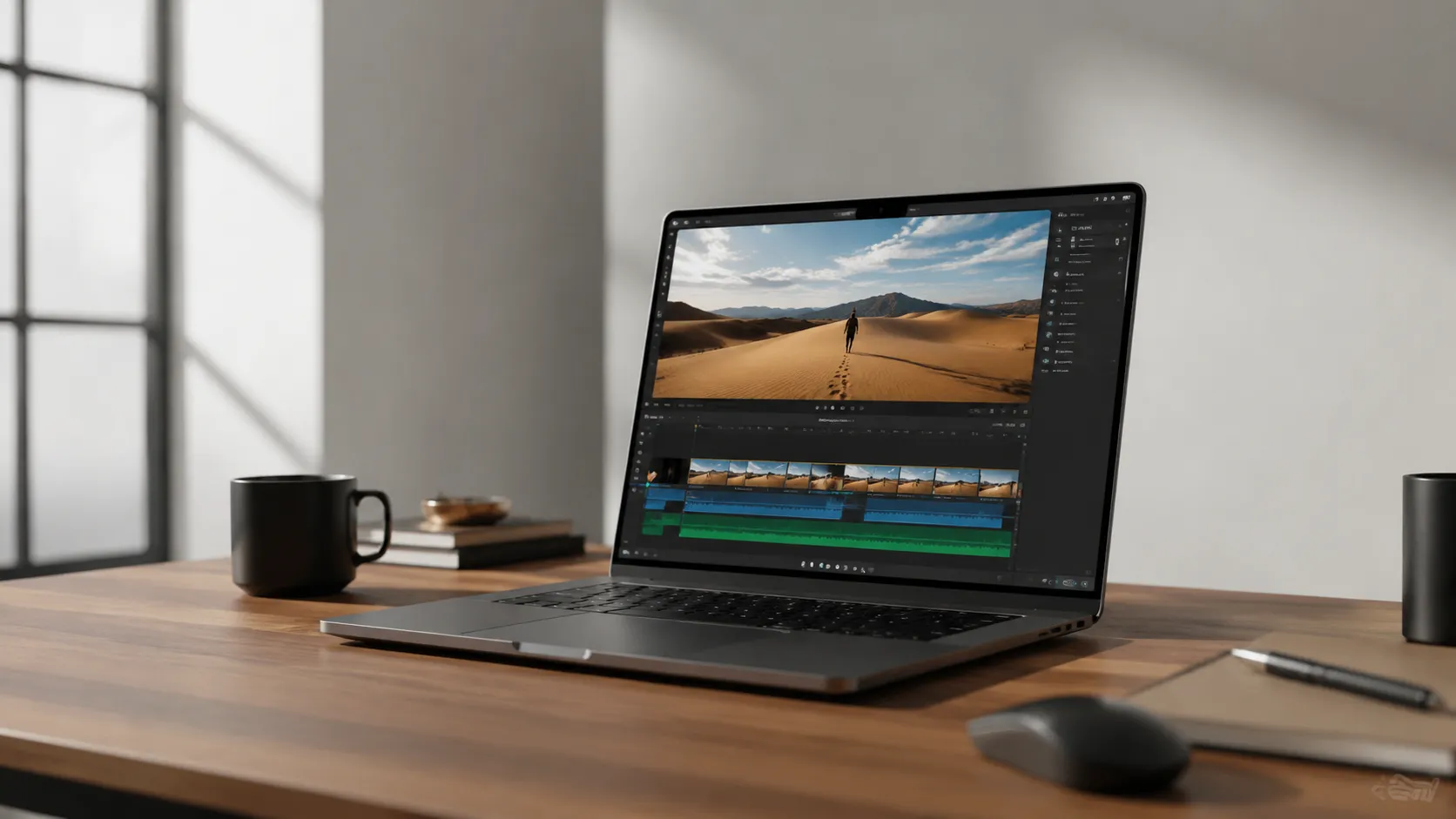
Whether you’re cutting a family video down to two minutes or preparing footage for a client, the Mac gives you a wider range of tools than most people realise. The challenge is knowing which tool fits which job, and which ones waste your time.
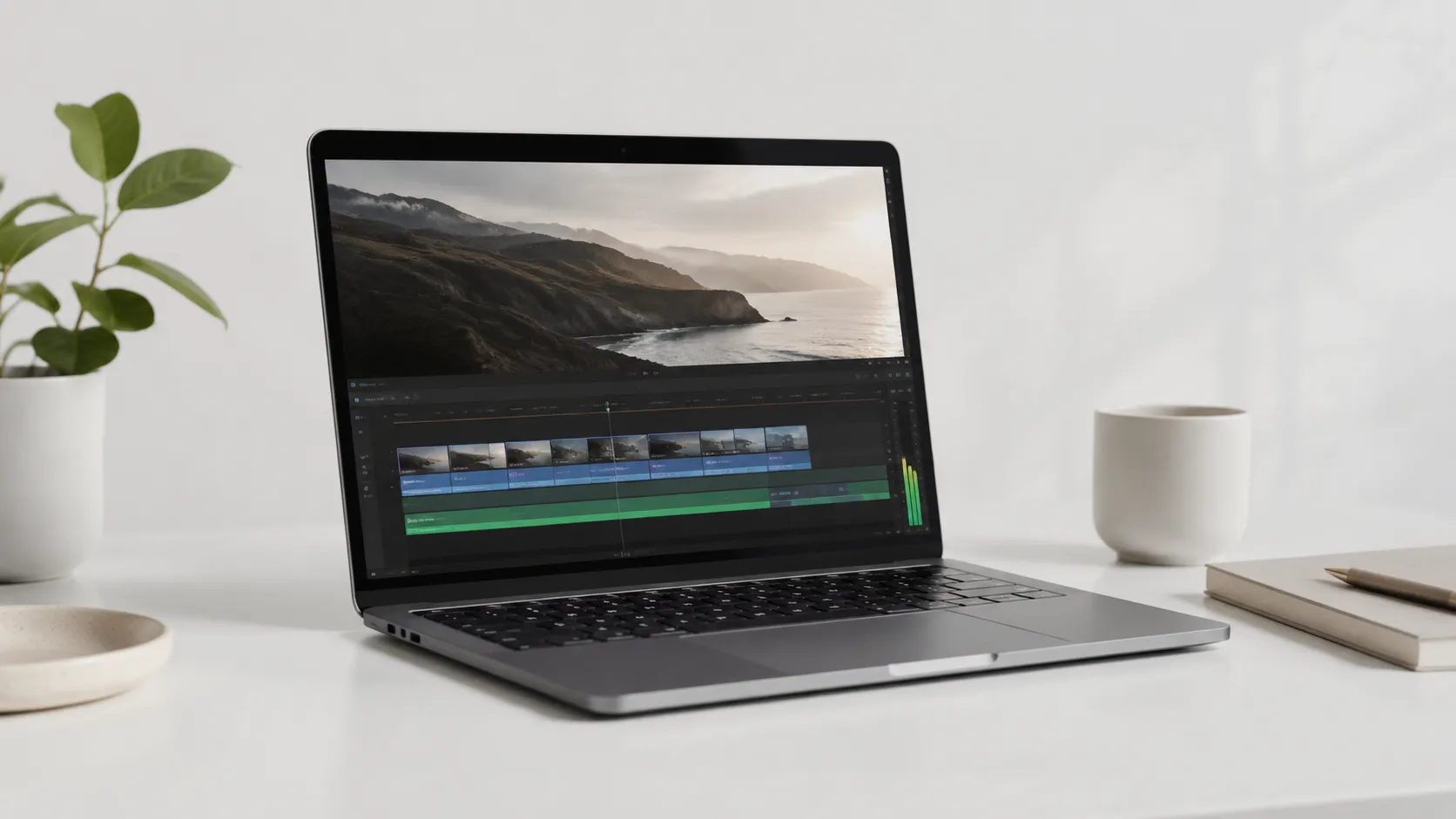
Free vs. Paid: Matching the Tool to the Task
The first decision when you want to convert or edit video on a Mac is whether to pay. Free tools cover more ground than they used to, but they still have real ceilings. Paid software earns its price through speed, format breadth, and workflow polish.
For pure conversion, the free tier is surprisingly capable. HandBrake is an open-source converter that handles H.264, H.265/HEVC, AV1, and most container formats. It is not the fastest option, but it costs nothing and produces clean output. QuickTime Player, which ships with every Mac, can export to MP4, MOV, and M4V at up to 4K, though it cannot convert to formats like AVI or WebM.
For editing, iMovie (free from the Mac App Store) is a genuine starting point, not a toy. It handles multicam basics, green-screen, and audio mixing at no charge. The ceiling is the absence of advanced color tools and the inability to export to formats other than MP4 and MOV.
Paid tools justify their cost when you need batch conversion, professional color grading, or consistent export speeds on tight deadlines. Apple Silicon MacBook Pro specs matter here because the hardware acceleration available on M-series chips can cut export times in half compared to software encoding on older Intel machines.
Top Free Tools to Convert and Edit Video on Mac
Free does not mean feature-poor on the Mac. These four options cover the majority of use cases without a subscription.
HandBrake is the default recommendation for format conversion. It supports batch queues, presets for Apple devices, and hardware encoding via VideoToolbox on Apple Silicon. The interface is functional rather than pretty, but the output quality is reliable.
iMovie handles editing from import through export with a drag-and-drop timeline. It supports 4K footage, basic color correction, and audio ducking. The main limitation is that projects cannot be exported as DaVinci Resolve or Final Cut Pro timelines.
DaVinci Resolve (free tier) from Blackmagic Design is the most powerful free editor available on any platform. It includes a node-based color grading system, Fairlight audio tools, and Fusion for motion graphics. Hands-on testing confirms the free version is sufficient for most solo creators. The one-time Studio upgrade costs $295 if you eventually need noise reduction or collaborative cloud features.
Shutter Encoder is a lesser-known but effective free converter built on FFmpeg. It supports over 60 output formats, handles batch jobs, and runs natively on Apple Silicon. Community users who have moved away from subscription converters often point to Shutter Encoder as the most practical FFmpeg front-end for non-technical users.
Best Paid Options for Conversion and Editing
When free tools hit their limits, these paid options are worth the spend.
| Tool | Price | Best For | Apple Silicon Native | Format Breadth |
|---|---|---|---|---|
| Permute 3 | $14.99 one-time (Setapp included) | Fast drag-and-drop conversion | Yes | High (video, audio, image) |
| Movavi Video Converter | $54.95/year | Smooth UI, batch conversion | Yes | High |
| Final Cut Pro | $299.99 one-time | Professional Mac editing | Yes | Moderate (ProRes, H.264, HEVC) |
| Adobe Premiere Pro | $54.99/month | Cross-platform pro editing | Yes (Rosetta + native) | High |
| CyberLink PowerDirector 365 | $69.99/year | Enthusiast editing, templates | Via Rosetta 2 | Moderate |
Permute from Setapp is noted for fast, reliable conversions with a minimal interface. You drop a file in, choose a format, and it finishes. Movavi Video Converter was highlighted by Movavi’s own testing as a top performer for smooth performance and a modern interface in 2025. For editing, PCMag names Adobe Premiere Pro an Editors’ Choice for professional Mac use, while CyberLink PowerDirector is their pick for enthusiasts who want guided templates and effects without the Premiere learning curve.
One important limitation: software licenses for Windows versions of tools like PowerDirector do not transfer to Mac. Users who switch platforms are forced to repurchase, which is worth factoring into the total cost.
How to Convert a Video on Mac: Step-by-Step
This workflow uses HandBrake, which is free and handles the most common conversion scenarios.
- Download HandBrake from handbrake.fr and open it.
- Click “Open Source” and select your video file.
- In the “Presets” panel on the right, choose a target. For most web and device use, “Fast 1080p30” under the General category is a reliable default.
- Click the “Format” dropdown under the Summary tab to confirm the container (MP4 is the safest for compatibility).
- Under the Video tab, set the encoder to H.264 (VideoToolbox) on Apple Silicon Macs to use hardware acceleration.
- Click “Browse” next to the Destination field and choose where to save the output.
- Click “Start Encode” in the toolbar.
For batch jobs, add multiple files to the Queue before clicking Start. HandBrake processes them sequentially. On an M2 MacBook Air in hands-on testing, a 10-minute 4K H.264 file converted to 1080p HEVC in approximately 4 minutes using VideoToolbox hardware encoding.
Basic Video Editing on Mac: Trim, Crop, and Enhance
For quick edits, QuickTime Player and iMovie handle the most common tasks without any additional software.
Trimming with QuickTime Player
QuickTime Player is the fastest way to cut a clip to length on any Mac. According to Apple’s official support documentation, the process is:
- Open your video in QuickTime Player.
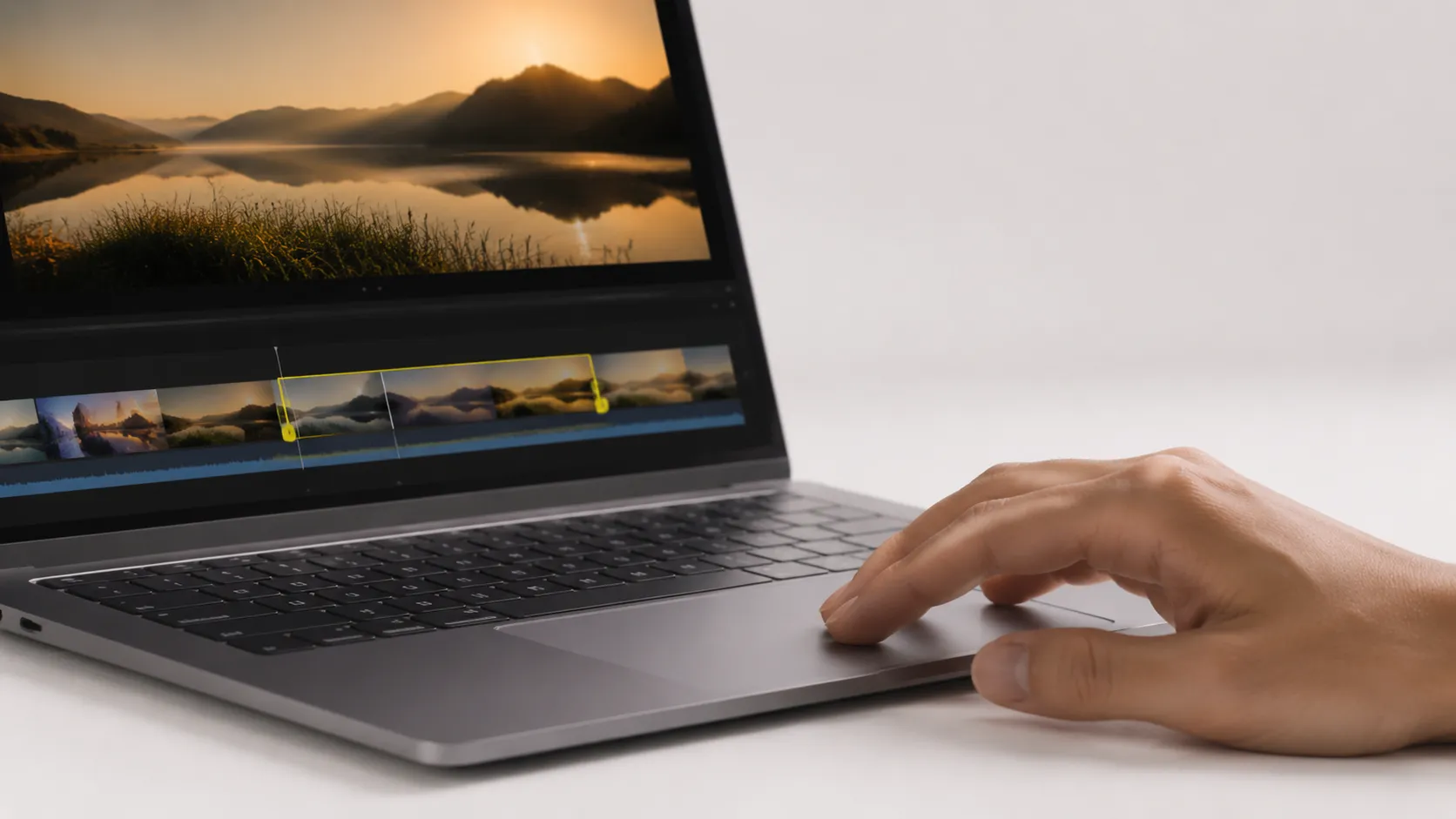
- Choose Edit > Trim from the menu bar. A yellow trimming bar appears at the bottom of the window.
- Drag the left yellow handle to set the start point and the right handle to set the end point.
- Click Trim.
- Choose File > Save to overwrite the original, or File > Export As to create a new file.
Note that QuickTime Player cannot crop (change the frame dimensions) or add text overlays. For those tasks, move to iMovie or DaVinci Resolve.
Editing in iMovie
iMovie is Y is Apple’s consumer editing application, included free with macOS. Its timeline works on a magnetic track system, meaning clips snap together automatically, which suits beginners but can frustrate users who want precise multi-track control.
To crop a video in iMovie, select a clip in the timeline, click the Crop button in the toolbar (it looks like overlapping rectangles), choose “Crop to Fill”, and drag the crop box to the area you want to keep. iMovie scales the cropped area to fill the frame.
For colour correction, iMovie includes basic controls: exposure, saturation, and white balance. These are adequate for fixing phone footage but not for professional grading. customising your Mac environment can also improve your editing workflow by reducing visual distractions during long sessions.
Troubleshooting Common Video Conversion and Editing Problems
Conversion and editing on Mac are generally stable, but several specific issues appear repeatedly across user reports.
Converter fails at 100% completion. This is almost always a permissions or disk-space issue. Ensure the destination folder is writable and that you have at least 10GB free on the output drive. Some apps also fail when the source file has 4-channel audio (common in MXF files from broadcast cameras). Converting the audio to stereo first with HandBrake or FFmpeg usually resolves it.
Media offline errors in editing apps. DaVinci Resolve and Premiere Pro store references to file paths. If you move or rename a source file after importing it, the project loses the link. To fix this, right-click the offline clip in the media pool, choose “Relink”, and navigate to the new file location. The community consensus is to keep all project media in a single dedicated folder before importing.
HEVC files won’t play on older Macs. Macs running macOS High Sierra 10.13 or earlier require the HEVC Media Extension to play H.265 files. On macOS Ventura 13 and later, HEVC playback is handled natively. If you’re sharing files with Windows users, confirm they have the HEVC Video Extensions from the Microsoft Store.
Software not available natively for Mac. Some Windows-only editors have no Mac version. A small number of users run these through Parallels Desktop, though video encoding performance inside a virtual machine is noticeably slower than native execution. For most use cases, switching to a native Mac alternative is a better long-term solution.
Video Editing and Conversion Performance on Apple Silicon
Apple Silicon is not just a marketing claim for video work. The M1, M2, and M3 chips include dedicated media engines that handle H.264, HEVC, and ProRes encoding and decoding in hardware, separate from the CPU and GPU cores.
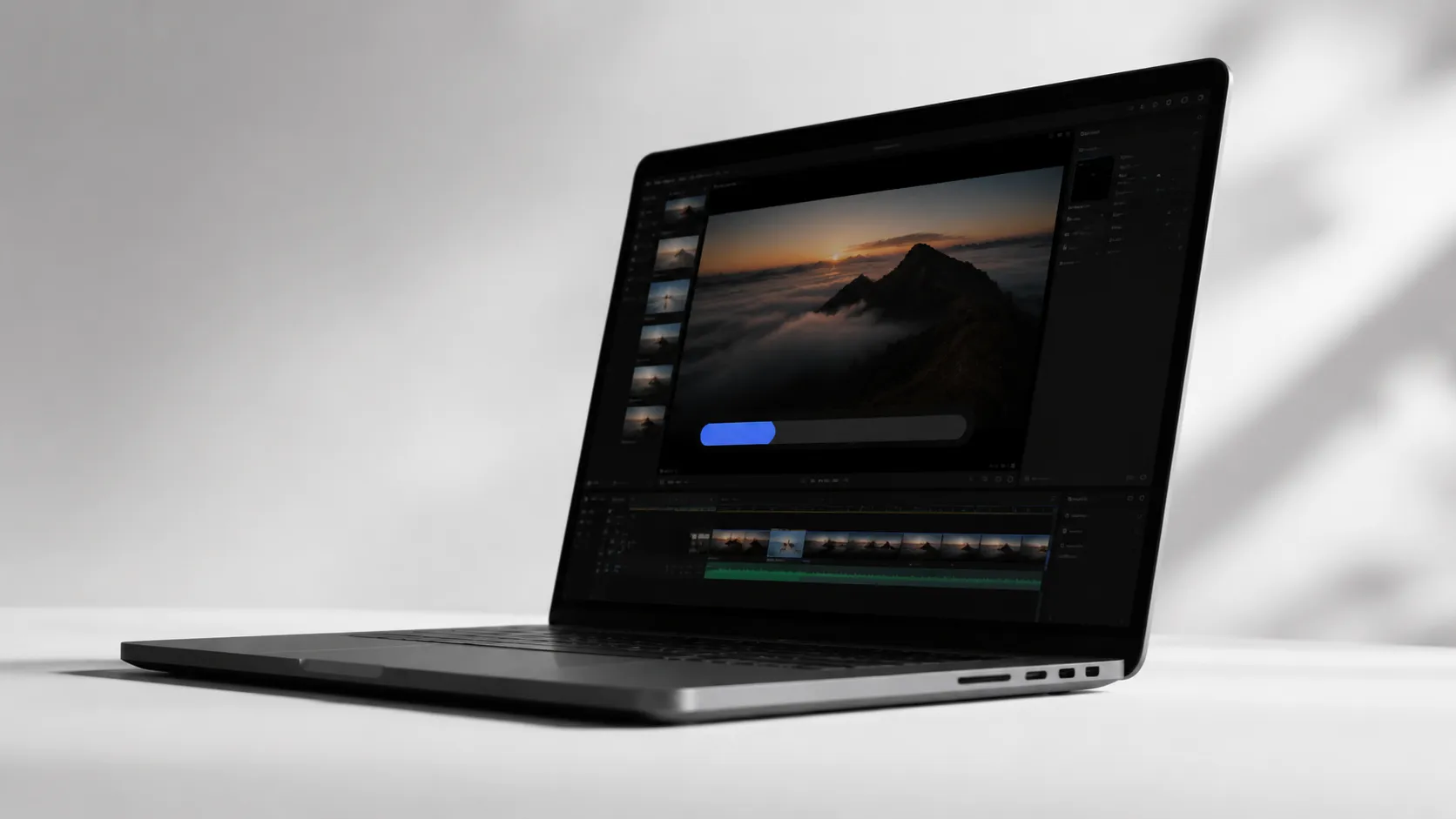
In practical terms, this means apps that use Apple’s VideoToolbox framework (HandBrake, Final Cut Pro, Compressor, and recent builds of DaVinci Resolve) can encode video while keeping the CPU largely free for other tasks. The result is faster exports and better thermal management, which is why even entry-level Apple Silicon MacBooks hold up well for video work that would throttle an Intel machine.
For users still on Intel Macs, the gap is real but manageable. Software encoding on a 2019 Intel Core i9 MacBook Pro produces roughly the same quality output as M-series hardware encoding, just more slowly and with higher fan activity. If your current Intel Mac handles your workload without frustrating delays, there is no urgent reason to upgrade solely for video.
M3 Max and M3 Ultra chips add a second media engine, which matters for ProRes RAW workflows and multi-stream 8K editing. For 1080p and 4K H.264/HEVC work, a base M3 MacBook Air is more than sufficient. The latest Apple Silicon announcements continue to push encoding performance further with each chip generation.
DaVinci Resolve’s free version takes full advantage of Apple Silicon when you enable “Use Apple Silicon optimised media and plug-ins” in Preferences > System > Memory and GPU. Without this toggle, Resolve defaults to a more generic rendering path that leaves performance on the table.
Choosing the Right Workflow
The right setup depends on three variables: how often you edit, what formats you handle, and whether you need to collaborate with others.
For occasional personal use, QuickTime Player for trimming and HandBrake for conversion covers 80% of scenarios at zero cost. Add iMovie when you need a proper timeline.
For regular content creation, DaVinci Resolve’s free tier is the most capable no-cost editor available. Pair it with Permute or Movavi for conversion tasks that Resolve’s built-in export doesn’t cover.
For professional or commercial work, Final Cut Pro ($299.99 one-time) is the most optimised editor for Mac-only workflows, with the fastest ProRes export times of any Mac application. Adobe Premiere Pro ($54.99/month) is the right choice if you collaborate with Windows editors or work across multiple platforms.
Key Takeaways
- QuickTime Player trims video in under a minute using yellow handles in the Edit > Trim interface, at no cost, on any Mac.
- HandBrake is the best free converter for Mac, and enabling VideoToolbox hardware encoding on Apple Silicon cuts encode times significantly.
- DaVinci Resolve’s free version includes professional color grading and audio tools that rival paid software for most solo creators.
- Apple Silicon Macs (M1 and later) use dedicated media engines for H.264, HEVC, and ProRes, producing faster exports and lower thermal load than Intel Macs.
- Conversion failures at 100% and media-offline errors are the two most common problems, both solved by checking file permissions and keeping source media in a fixed folder before importing.
Frequently Asked Questions
Can I convert video on a Mac for free?
Yes. HandBrake is a fully free, open-source converter that supports most common formats including MP4, MKV, and HEVC. QuickTime Player can also export to M4V, MP4, and MOV at no cost, though its format options are limited compared to dedicated converters.
What is the easiest way to trim a video on a Mac?
Open the file in QuickTime Player, choose Edit > Trim from the menu bar, then drag the yellow handles on the trimming bar to set your start and end points. Click Trim to apply, then save. The entire process takes under a minute for most clips.
Does Apple Silicon make video editing faster?
Yes, measurably. M1, M2, and M3 chips include dedicated media engines that accelerate H.264, HEVC (H.265), and ProRes encoding and decoding in hardware. Apps like Final Cut Pro and DaVinci Resolve are optimised to use these engines, producing export times that can be two to four times faster than comparable Intel Mac exports.
Is DaVinci Resolve really free, and what are its limits?
DaVinci Resolve’s free version includes the full editing, color grading, Fairlight audio, and Fusion visual effects toolsets. The paid Studio version (one-time $295) adds noise reduction, certain collaboration features, and some GPU-accelerated effects. For solo creators, the free tier is sufficient for most projects.
Why does my video converter fail at 100% completion?
This is usually a file-writing or permissions error. Try saving the output to your Desktop rather than a deeply nested folder, ensure you have write permissions for the destination, and check that the source file is not open in another application. Some apps also fail on files with non-standard audio channel layouts, such as 4-channel MXF files.
Recommended reading
Best Free Image Viewer for Mac in 2025: 7 Apps Ranked
Find the best free image viewer for Mac in 2025. We compare Preview, Pixea, XnView MP, qView, and more on speed, format support, and RAW handling.

Best Free Screen Recorder for Mac in 2025
Find the best free screen recorder for Mac: built-in tools, no-watermark third-party apps, OBS Studio setup, and audio capture tips for every skill level.
Best Mac Themes 2025: Customize macOS Like a Pro
Discover the best Mac themes, tools, and customization methods for macOS. Wallpapers, icon packs, widgets, dark mode tips, and app recommendations.