Best Mac Themes 2026: Customize macOS Like a Pro

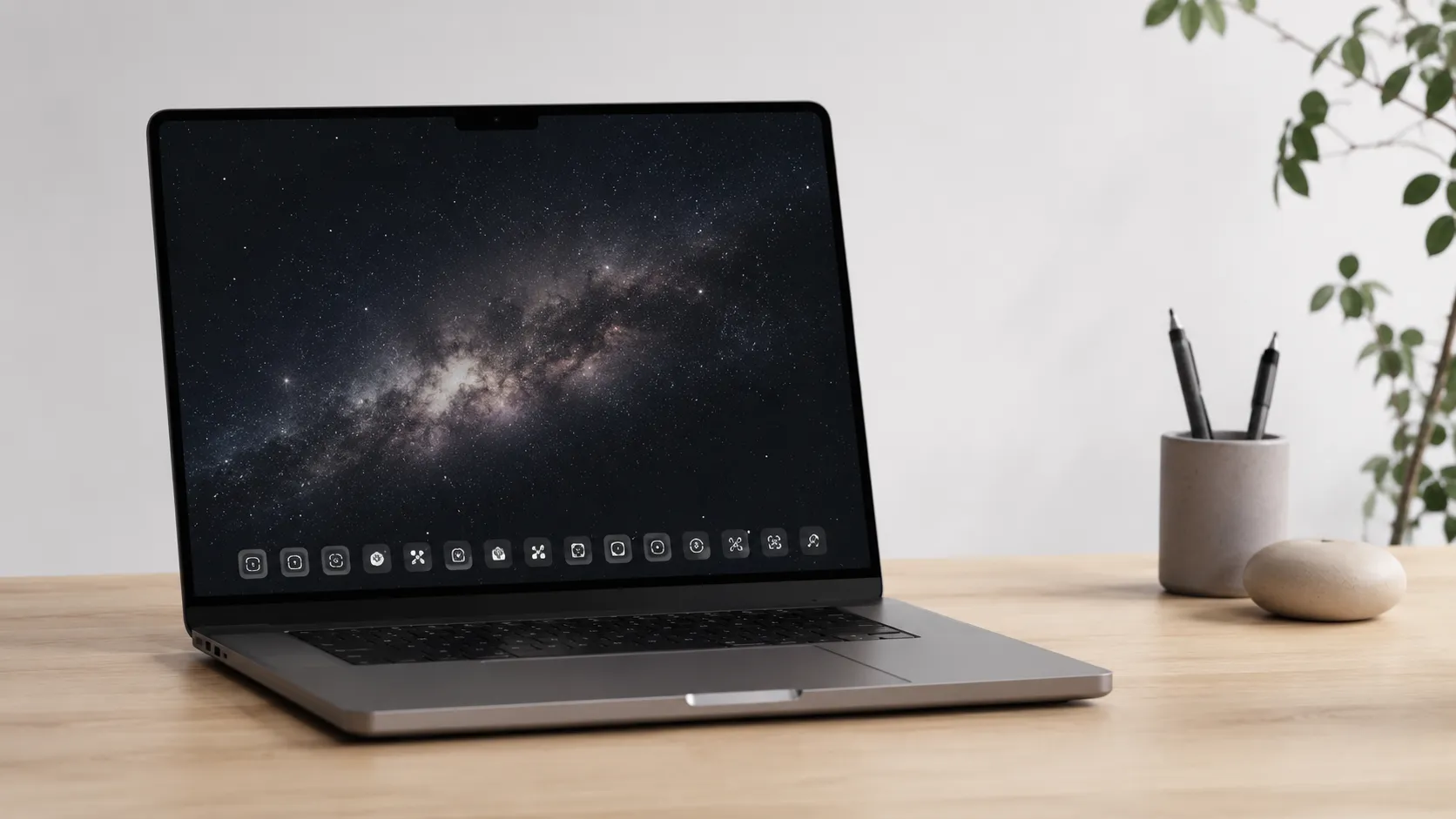
macOS does not hand you a theme picker the way KDE Plasma or even Windows 11 does. What Apple gives you is a tight design system with a handful of official knobs, and what the third-party ecosystem gives you is a set of tools that work around the edges of that system. Used together, those two layers can produce a desktop that looks nothing like the factory default.
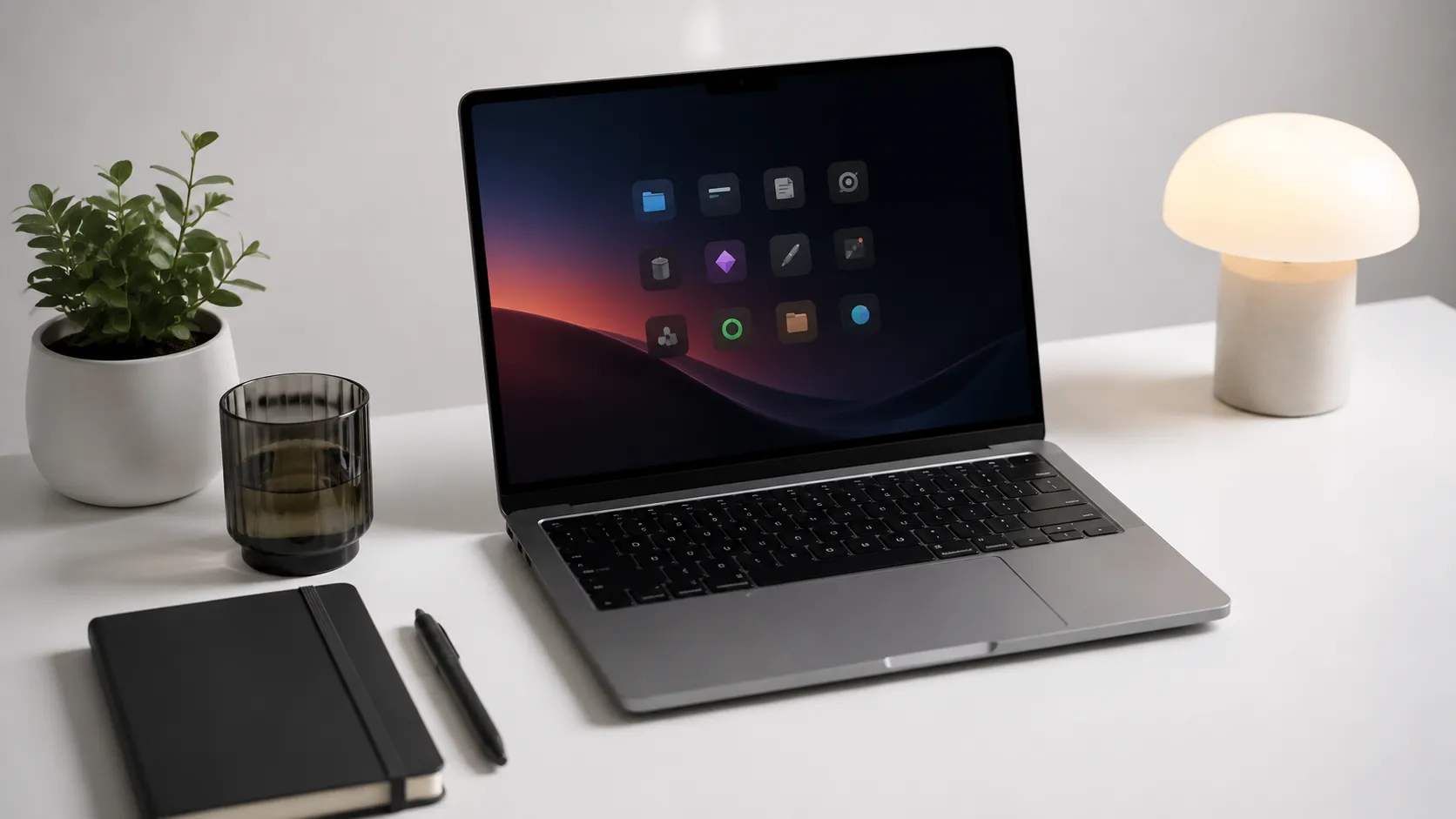
This guide covers the full stack: the history that explains why macOS looks the way it does, the specific tools worth installing today, a step-by-step process for the most impactful changes, and an honest look at where the limits are.
How macOS Design Has Evolved: From Aqua to Sequoia
macOS has gone through four distinct visual eras, and understanding them helps you decide which aesthetic direction to chase. Each era left behind usable assets, wallpapers, and icon styles that the community still remixes.
Aqua (Mac OS X 10.0 Cheetah through Tiger 10.4, 2001-2005) is the candy-colored, hyper-glossy era. Buttons looked like wet glass, the Dock had a reflective shelf, and everything had a blue or graphite tint. The design was explicitly meant to make people want to lick the screen, in Steve Jobs’s words. Fan recreations of Aqua-style desktops remain popular on sites like Dribbble.
Skeuomorphic (Leopard 10.5 through Mountain Lion 10.8, 2007-2012) layered real-world textures over the Aqua base. iCal showed stitched leather, Notes looked like a legal pad, and the Finder sidebar used linen. This era is divisive: some users find it warm and tactile; others consider it cluttered.
Flat (Yosemite 10.10 through Catalina 10.15, 2014-2019) stripped the textures and went translucent. Jony Ive’s influence pushed macOS toward iOS visual language. The Dock became a flat shelf, sidebars turned frosted glass, and the system font switched to Helvetica Neue, then San Francisco.
Neumorphic/Rounded (Big Sur 11 through Sequoia 15, 2020-present) introduced larger corner radii, full-height sidebars, and a more iOS-aligned icon grid. macOS Big Sur specifically introduced what designers called a neumorphic quality: soft shadows and extruded shapes that suggest depth without using gradients. Hands-on testing and community discussion both confirm that this transition is controversial. A recurring complaint is that the current design lacks clear active-window indication compared to the Mavericks era, and that the rounded corners on some UI panels reduce information density.
upcoming Mac hardware changes that may bring new default aesthetics
The Best Mac Themes and Aesthetic Directions in 2026
A “Mac theme” is not a single downloadable file. It is a combination of a wallpaper, an icon set, a color scheme, a widget layout, and optionally a modified Dock or menu bar. The four most popular aesthetic directions right now are:
Minimal Dark. A near-black or deep navy wallpaper, monochrome or single-accent icon set, hidden menu bar, and auto-hiding Dock. This setup is the most popular on productivity-focused setups because it reduces visual noise during long coding or writing sessions.
Retro Aqua Revival. Recreates the Mac OS X 10.3-10.4 Panther/Tiger look using archived Aqua wallpapers, glossy icon packs from sources like macOSicons.com, and the Dock set to magnification with a 3D shelf effect (still available in System Settings under Dock and Menu Bar on macOS Ventura and later).
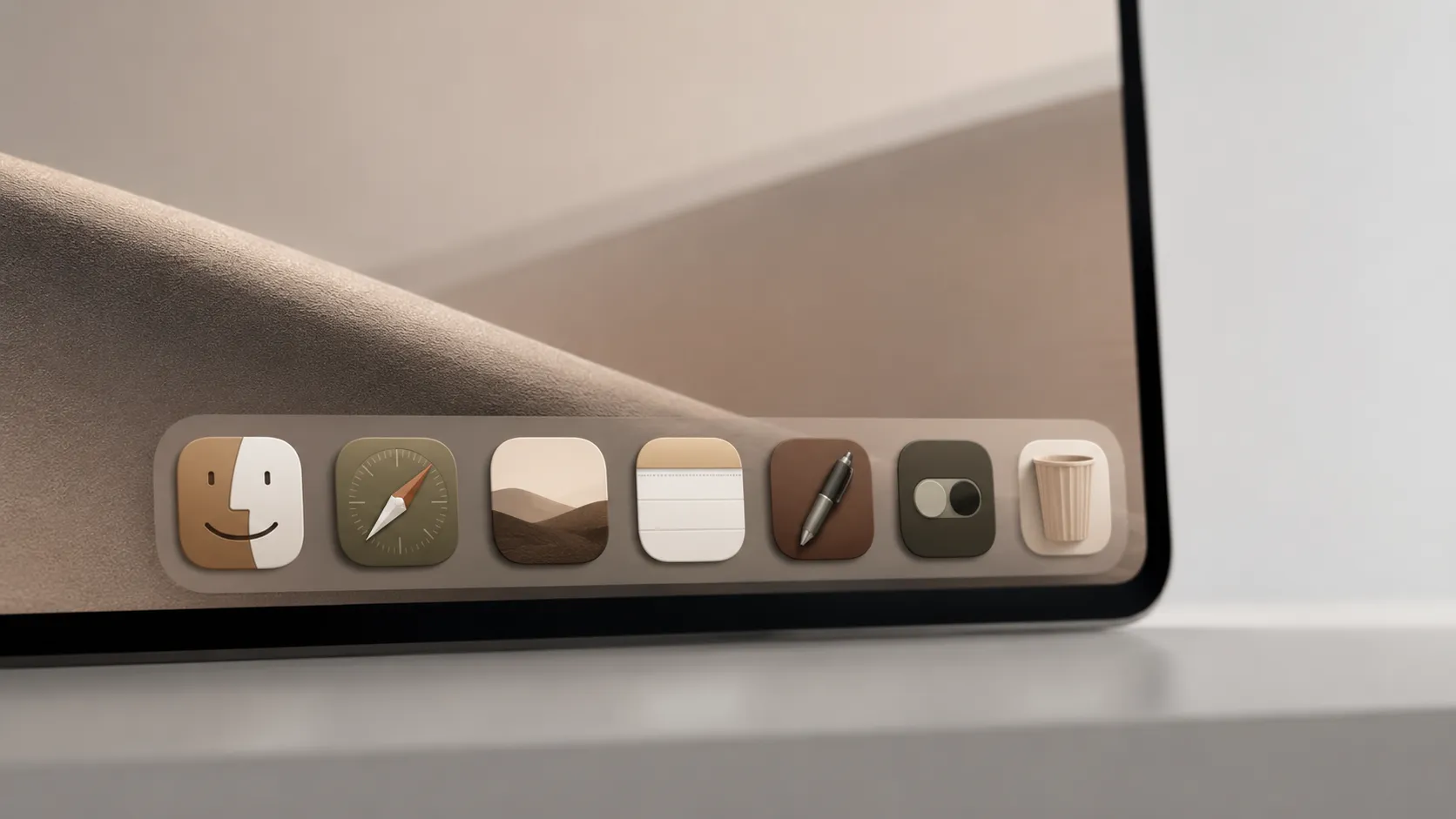
Pastel Aesthetic. Popularized by the MacBook customization community on Pinterest and YouTube, this pairs soft-toned wallpapers (peach, sage, lavender) with custom folder icons in matching colors. The Aesthetic Background Themes app on the Mac App Store targets exactly this audience, offering bundled wallpapers, folder icons, widgets, and cursor effects in coordinated palettes.
High-Contrast Accessibility. Uses macOS’s built-in Increase Contrast mode (System Settings, Accessibility, Display) combined with a dark wallpaper and large-text widgets. This is underserved in most theme guides but genuinely improves usability for users sensitive to the current design’s low visual separation between UI layers.
Essential Tools for macOS Theming: Free and Paid
The tools below are all compatible with macOS Ventura 13 through Sequoia 15 and do not require disabling System Integrity Protection.
| Tool | Cost | What It Changes | SIP Required? |
|---|---|---|---|
| Übersicht | Free | Desktop widgets (HTML/JS) | No |
| Pictogram | Free tier / $9.99 one-time | App and folder icons | No |
| HiDock | $9.99/year | Dock appearance and behavior | No |
| Dynamic Wallpaper Club | Free / $3.99/month | Time-shifting wallpapers | No |
| Aesthetic Background Themes (App Store) | Free / IAP | Wallpapers, icons, widgets, cursors | No |
| Bartender 5 | $16 one-time | Menu bar icon management | No |
| TopNotch | Free | Hides notch on notched MacBooks | No |
For pure visual impact per dollar, Pictogram plus a free Übersicht widget pack is the strongest combination. HiDock is worth the subscription if you spend significant time managing windows, because it adds features like window previews and custom Dock backgrounds that meaningfully change the desktop feel. Aesthetic Background Themes is the right pick if you want a coordinated pastel or seasonal look without assembling the pieces manually.
How to Customize Your Mac: Step-by-Step
The sequence below moves from zero-risk changes to progressively more involved ones. Complete each stage before moving to the next.
Stage 1: System Settings Changes (No Third-Party Apps)
- Open System Settings, go to Appearance. Set mode to Dark, Light, or Auto. Choose an accent color from the 10 built-in swatches, or pick a custom color in macOS Sonoma 14 and later.
- Go to Wallpaper. Click the plus button to add any image. For dynamic wallpapers that shift with the time of day, choose any of Apple’s built-in “Dynamic” options or add a custom .heic dynamic wallpaper file.
- Go to Dock and Menu Bar (Ventura) or Desktop and Dock (Sonoma/Sequoia). Enable magnification, set the Dock size to your preference, and toggle “Automatically hide and show the Dock” for a cleaner look.
- Go to Accessibility, then Display. Try “Reduce Transparency” if the frosted-glass sidebars feel visually busy. Enable “Increase Contrast” for sharper UI borders.
- Go to Control Center and customize which items appear in the menu bar.
Stage 2: Replace Icons with Pictogram
- Download Pictogram from the developer’s site (pictogramapp.com) or the Mac App Store.
- Open Pictogram and drag any app or folder onto its window. The app reads the current icon and lets you replace it with any .icns or .png file.
- Download a free icon set. macOSicons.com hosts over 10,000 community-made icons compatible with macOS. Search by app name and download the .icns file.
- Drag the downloaded icon onto the app in Pictogram and click Apply. The change takes effect immediately without a restart.
Stage 3: Add Desktop Widgets with Übersicht
- Download Übersicht from tracesof.net (free, open source).
- Open Übersicht. It creates a widget folder at ~/Library/Application Support/Übersicht/widgets.
- Browse the Übersicht widget gallery at tracesof.net/uebersicht-widgets. Download a widget folder and place it in the widgets directory. Übersicht auto-loads it.
- Edit the widget’s .jsx or .coffee file in any text editor to adjust colors, fonts, and position to match your chosen palette.
Stage 4: Refine the Menu Bar with Bartender 5
Bartender 5 is a menu bar manager that hides, rearranges, and groups menu bar icons. At $16 one-time (as of mid-2025), it removes the visual clutter that accumulates when you run multiple background apps. It also supports menu bar profiles, so you can switch between a minimal “focus” layout and a full “monitoring” layout with a keyboard shortcut.
iPhone customization options that pair well with a unified Apple aesthetic
Light Mode vs. Dark Mode: The Honest Comparison
Light mode and dark mode are not simply personal preference choices. Each has measurable trade-offs depending on your hardware and environment.
| Factor | Light Mode | Dark Mode |
|---|---|---|
| OLED battery savings | None (LCD panels) | Significant on OLED iPhones; MacBooks use LCD/mini-LED |
| Eye strain in bright rooms | Lower (matches ambient light) | Higher (contrast reversal in daylight) |
| Eye strain in dark rooms | Higher | Lower |
| Text legibility on default fonts | Slightly higher for most users | Slightly lower at small sizes |
| App compatibility | Universal | Some older apps render poorly |
| Wallpaper visibility | Better with light wallpapers | Better with dark wallpapers |
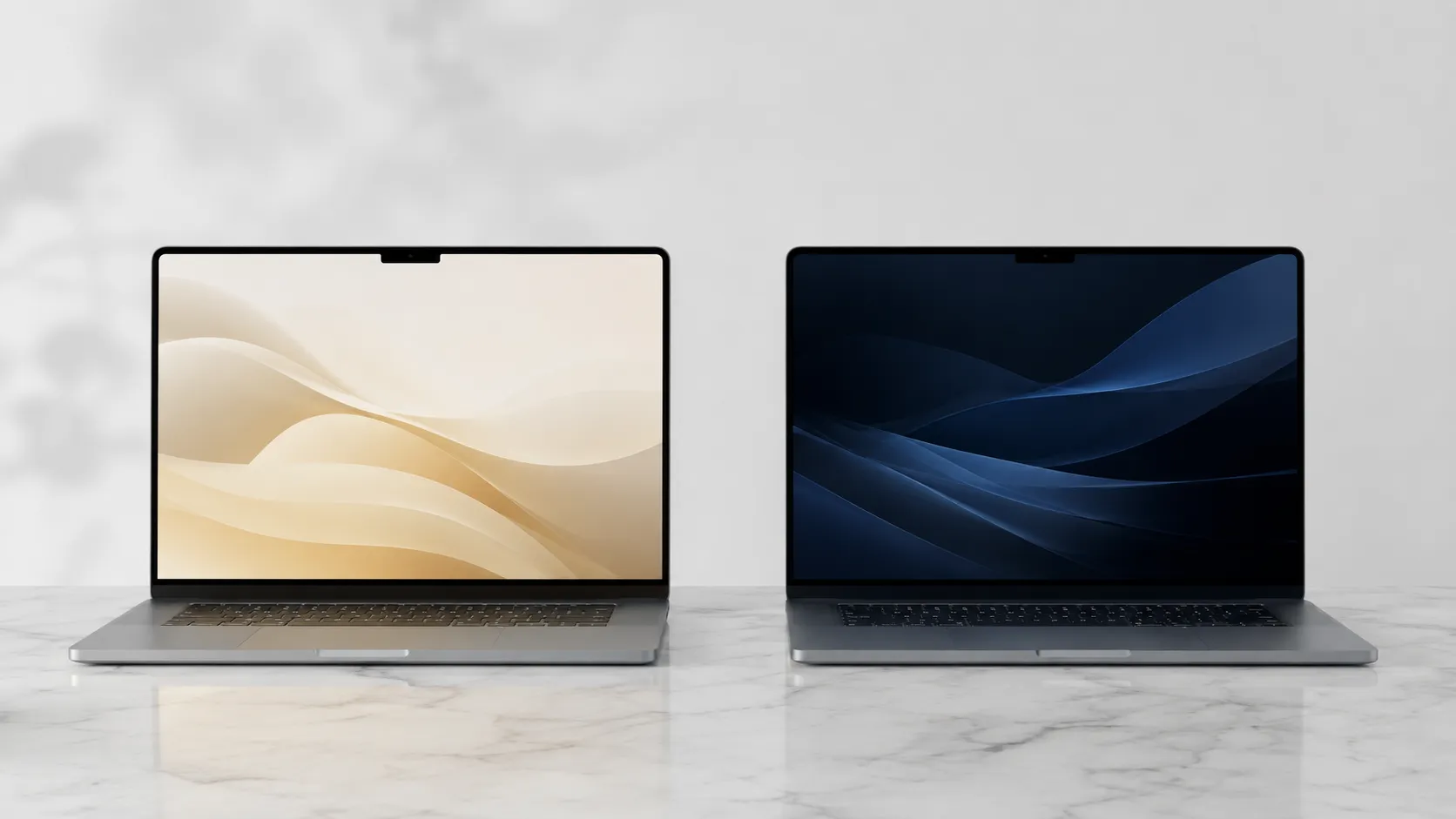
A common complaint in the user community is that neither extreme is comfortable for all-day use: light mode is too bright at maximum display brightness, and dark mode creates halation around white text on pure-black backgrounds. The practical fix is to use Auto mode (switches at sunset/sunrise), reduce display brightness by 20-30% in light mode, and choose a dark grey wallpaper (hex #1a1a2e or similar) rather than pure black in dark mode.
macOS does not offer a true “grey mode” or mid-tone system theme natively. The closest workaround is enabling Reduce Transparency in Accessibility settings, which replaces the frosted-glass effect with solid grey panels and produces a noticeably more neutral, less polarized look.
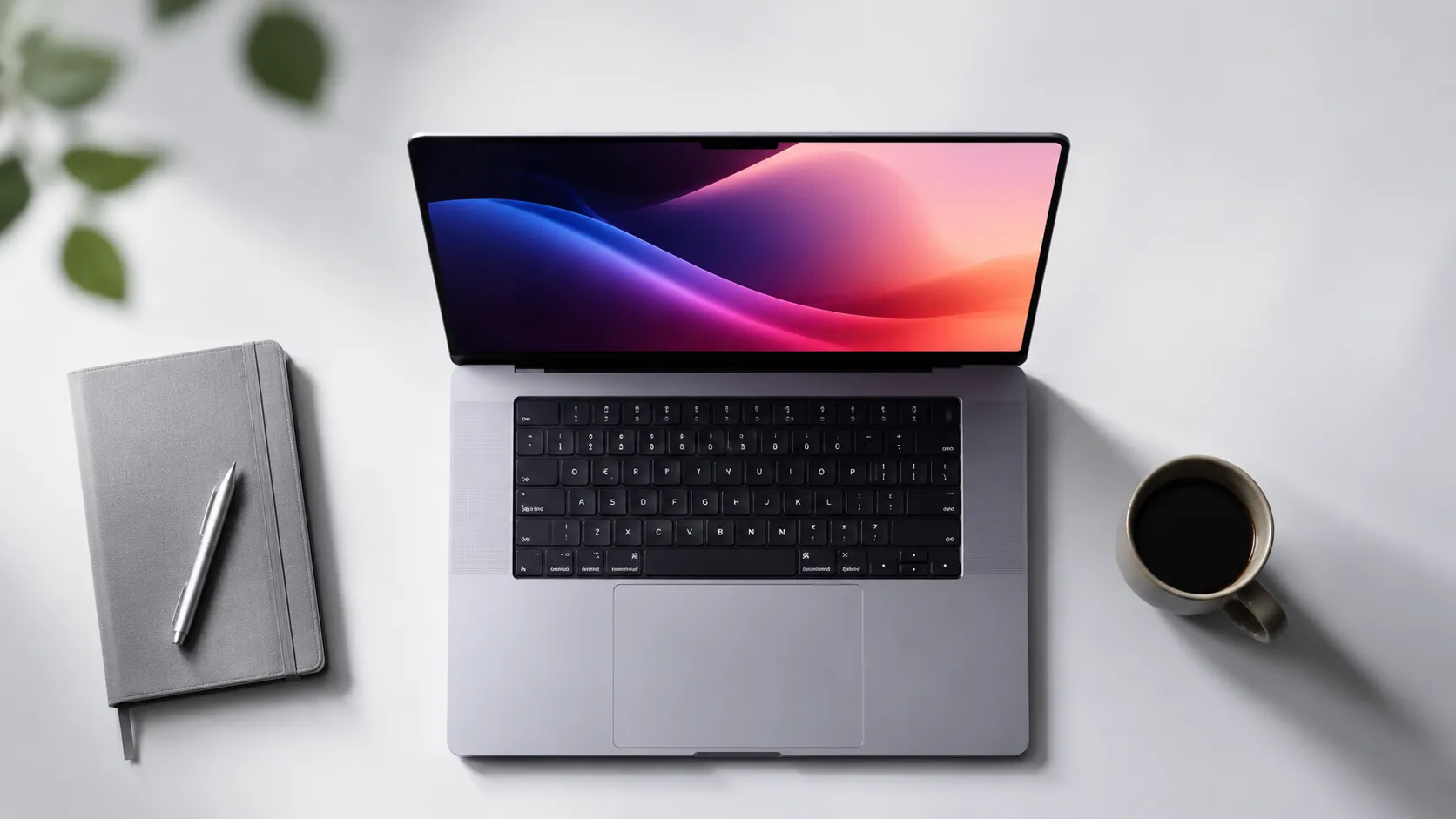
Advanced Customization: Accent Colors, Cursors, and Fonts
Custom Accent Colors
macOS Sonoma 14 and Sequoia 15 allow a fully custom accent color beyond the 10 presets. In System Settings, Appearance, click the color swatch at the end of the row to open the color picker. This color applies to buttons, checkboxes, progress bars, and selected text highlights across the entire system.
Cursor Customization
macOS Monterey 12 introduced cursor color customization in System Settings, Accessibility, Display. You can set independent fill and outline colors. The Aesthetic Background Themes app extends this with animated cursor effects, though those require its runtime to be running in the background.
System Font Considerations
Apple’s San Francisco font is baked into the system and cannot be replaced without disabling SIP. However, individual apps that respect user font preferences (including most text editors and email clients) can be set to any installed font. For coding environments, switching Visual Studio Code’s editor font to a Nerd Font variant (JetBrains Mono, Fira Code) is a low-effort change that dramatically alters the feel of a developer-focused desktop.
Spotlight and Stage Manager
Stage Manager, introduced in macOS Ventura 13, changes how windows are grouped and displayed. Enabling it (Control Center, Stage Manager) gives the desktop a more structured, card-based look that some users find closer to a tiled window manager aesthetic. It pairs well with a minimal dark theme because the window groupings become the dominant visual element.
how the latest MacBook Pro hardware affects display and theme rendering
Troubleshooting Common Theming Issues
Icons revert after an app update. This is expected behavior. When an app updates, macOS restores the original icon bundle. Pictogram includes an auto-restore feature that re-applies your custom icon after an update is detected. Enable it in Pictogram’s preferences.
Widgets disappear after a restart. Übersicht must be set to launch at login. Open System Settings, General, Login Items, and add Übersicht to the “Open at Login” list.
Menu bar icons reappear after Bartender hides them. Some system agents (VPN clients, cloud sync tools) force their icons to the visible area. Bartender 5’s “Always Hidden” rule overrides most of these, but a handful of apps with high system privileges ignore it. The workaround is to disable the app’s menu bar icon in its own preferences if that option exists.
Dark mode makes some apps look broken. Apps built with older AppKit frameworks may not fully support Dark Mode. The fix is to force-launch the specific app in light mode: right-click the app in Finder, Get Info, and check “Open in Low Resolution” is off, then use the terminal command defaults write com.appbundleid NSRequiresAquaSystemAppearance -bool YES, replacing com.appbundleid with the app’s actual bundle identifier.
Wallpaper appears washed out on ProMotion displays. MacBook Pro models with Liquid Retina XDR displays render wide-color (P3) images differently than sRGB images. Download wallpapers tagged as P3 or convert your preferred image using Preview’s Export function, selecting “Display P3” as the color profile.
display specs on Apple’s latest MacBook lineup that affect how themes render
Key Takeaways
- macOS customization works in layers: System Settings changes (free, zero risk) sit at the base, followed by icon packs, then widget engines, then menu bar managers. Each layer adds visual impact without requiring the next.
- The four dominant aesthetic directions are Minimal Dark, Retro Aqua Revival, Pastel Aesthetic, and High-Contrast Accessibility. Each suits different workflows and hardware.
- Pictogram (free tier available) plus Übersicht (free) covers 80% of what most users want without touching System Integrity Protection.
- Neither light mode nor dark mode is universally superior. Auto mode combined with reduced transparency and a mid-tone wallpaper is the most comfortable all-day configuration for most users.
- Icon sets revert on app updates. Use Pictogram’s auto-restore feature or budget 5 minutes after major app updates to reapply your icon set.
Frequently Asked Questions
Can you fully theme macOS like you can on Windows or Linux?
No. Apple restricts access to core UI files in macOS, especially since System Integrity Protection (SIP) was introduced in OS X El Capitan 10.11. You can change wallpapers, icons, accent colors, cursor styles, and add widgets, but replacing the entire window chrome or system font requires disabling SIP, which carries real security risks. Most users achieve strong visual results without touching SIP.
Are free macOS icon packs safe to install?
Icon packs distributed as .icns files or through apps like Pictogram are generally safe because they only modify folder and app icon resources, not system binaries. Always download from the developer’s official site or the Mac App Store. Avoid packages that require you to disable SIP or run unsigned scripts.
Does heavy customization slow down a Mac?
Wallpaper and icon changes have zero measurable performance impact. Widget engines like Übersicht run JavaScript and can add 1-3% CPU load depending on the number of active widgets. Dynamic wallpaper apps that cycle images on a schedule use negligible resources on Apple Silicon Macs. The main risk is app instability, not speed loss.
What is the best free tool for macOS desktop customization?
Übersicht is the strongest free option for adding live widgets written in HTML and JavaScript directly to the desktop. For icon replacement, Pictogram (free tier available) is the most straightforward modern tool. Both work on macOS Ventura 13 through Sequoia 15 without disabling SIP.
What happened to ShapeShifter for Mac theming?
ShapeShifter, developed by Unsanity, allowed system-wide UI theme replacement on Mac OS X through the PowerPC and early Intel era. It stopped working after Apple introduced 64-bit-only processes and tightened code signing in macOS Catalina 10.15. No direct successor exists that matches its depth of theming without disabling SIP.
Recommended reading
How to Rip a DVD on Mac: Software, Steps & Tips
Learn how to rip a DVD on Mac with HandBrake, MakeMKV, and VLC. Hardware requirements, step-by-step instructions, and troubleshooting covered.
How to Convert and Burn MKV Video on Mac (2026)
Complete guide to converting MKV files on Mac and burning them to DVD or Blu-ray. Free and paid tools, step-by-step instructions, and troubleshooting tips.
How to Burn a DVD on Mac: Data, Video & ISO Guide
Learn how to burn a DVD on Mac using Finder, the free Burn app, and third-party tools. Covers data DVDs, video DVDs, ISOs, and troubleshooting tips.