Share Files Between Mac and Windows: Every Method Ranked
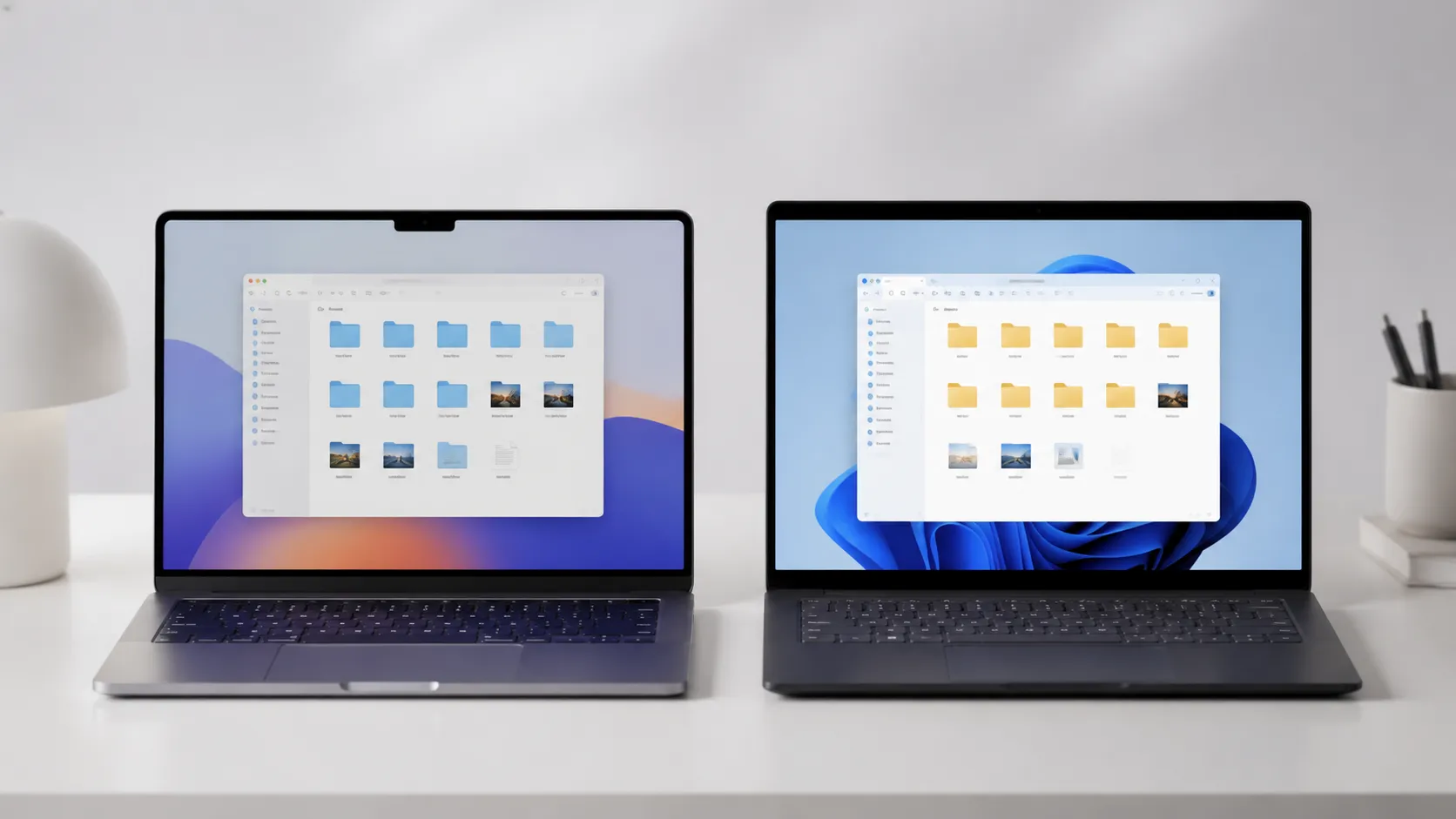
Mixed Mac-and-Windows households are common: someone uses a MacBook for creative work while a Windows desktop handles gaming or a corporate VPN. Getting files from one machine to the other should take seconds, but the wrong approach turns it into a 30-minute exercise in frustration. This guide covers every practical method, ranked by speed and convenience, with exact steps for macOS Sequoia and Windows 11.
Method 1: SMB Network File Sharing (Built-In, Free, Fast)
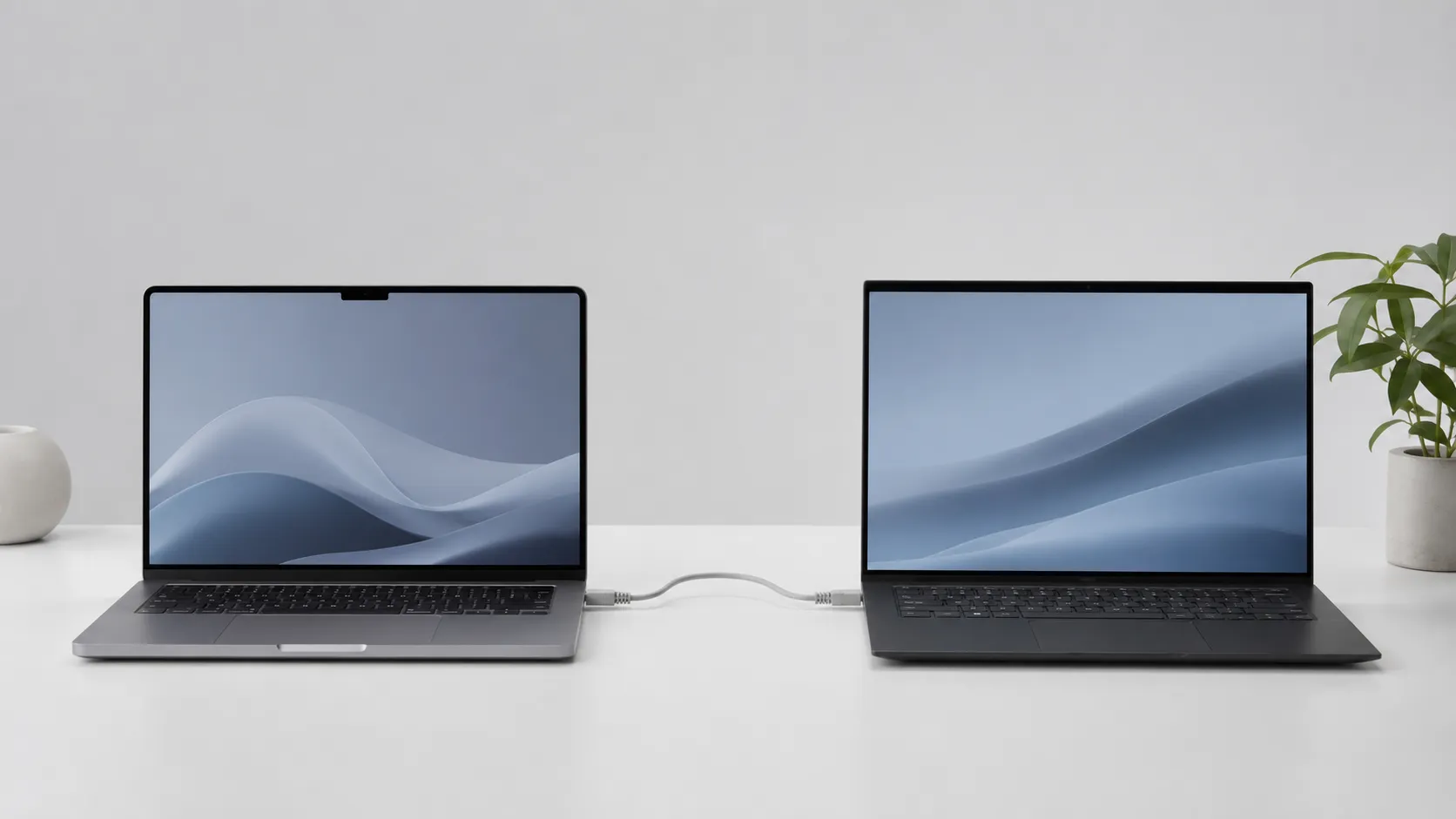
SMB (Server Message Block) is the protocol both macOS and Windows use to share folders over a local network. Apple’s official support documentation confirms that Macs running macOS Sonoma and later default to SMB rather than the older AFP protocol, which means the two operating systems speak the same language without any extra software.
Enable File Sharing on the Mac
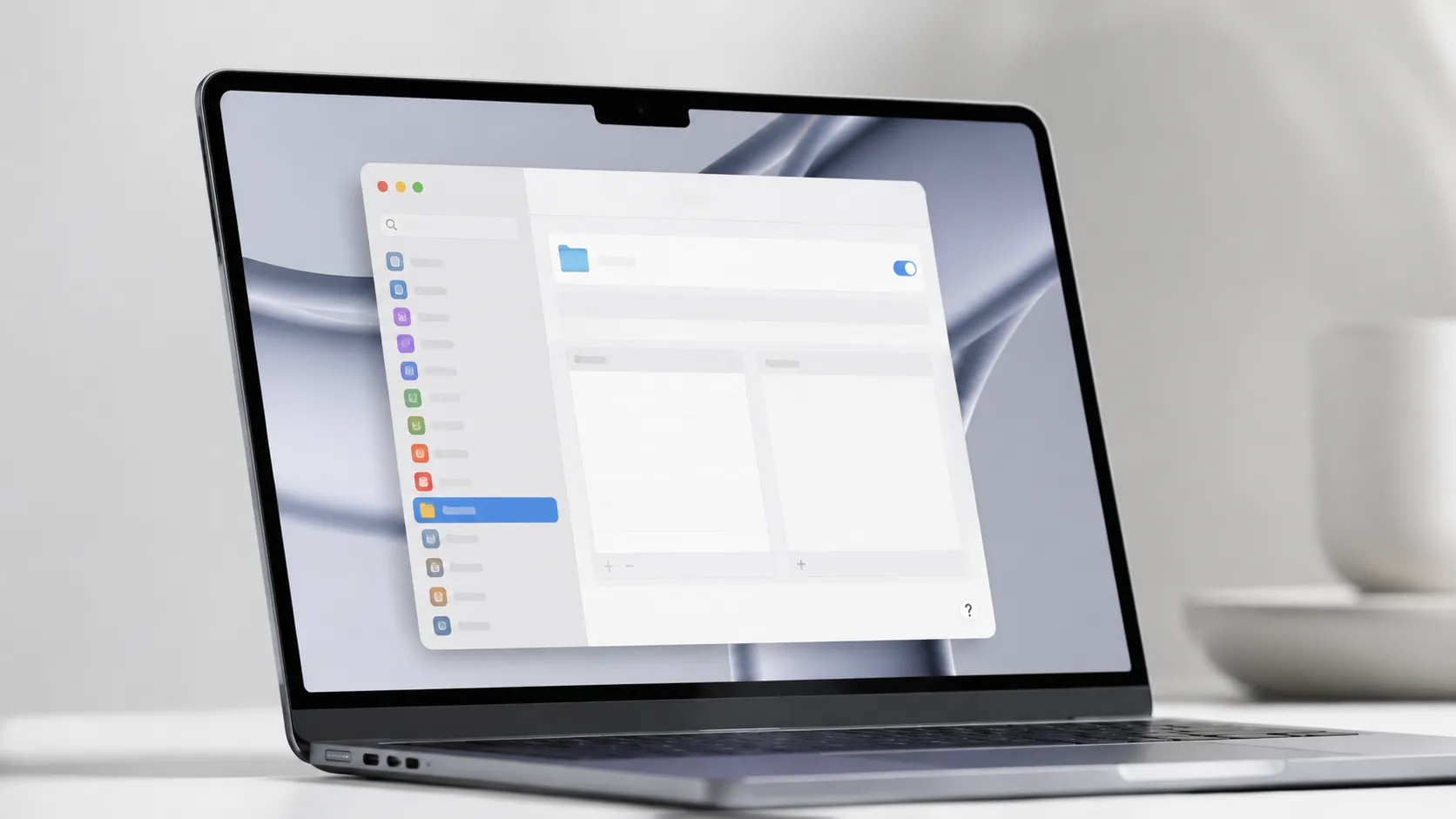
- Open System Settings and click General, then Sharing.
- Toggle File Sharing on.
- Click the Options button and check Share files and folders using SMB.
- Tick the checkbox next to your user account under Windows File Sharing and enter your password when prompted.
- Back in the Sharing panel, click the + under Shared Folders to add any folder you want Windows to access.
Once enabled, the Mac’s IP address appears at the bottom of the Sharing panel, for example smb://192.168.1.45.
Connect from Windows 11
- Open File Explorer and click the address bar.
- Type
\\192.168.1.45(replace with your Mac’s actual IP) and press Enter. - Enter the macOS username and password you enabled for SMB sharing.
- The Mac’s shared folders appear as a network location.
For persistent access, right-click a shared folder and select Map network drive. Assign it a drive letter so it appears in File Explorer every time Windows boots. Older tutorials often skip this mapping step, which is why users end up repeating the manual connection after every restart.
Enable File Sharing on Windows 11 for Mac Access
- Open Settings, go to System, then Nearby sharing is not what you want here. Instead, open Control Panel, Network and Sharing Center, Advanced sharing settings.
- Under your active network profile, turn on Network discovery and File and printer sharing.
- Right-click any folder in File Explorer, select Properties, then Sharing, then Share. Add the user account and set the permission level.
- On the Mac, open Finder, press Cmd+K, and type
smb://[Windows-PC-IP]. Enter the Windows credentials when prompted.
Hands-on testing shows that Windows 11’s default “Public” network profile blocks discovery. Switching the profile to “Private” in Settings, under Network and Internet, resolves the most common issue where the Mac and Windows PC cannot see each other.
Method 2: Cloud Storage for Automatic Cross-Platform Sync
Cloud storage syncs files automatically without any network configuration, making it the lowest-friction option for users who regularly move documents between platforms. The trade-off is that file availability depends on internet speed and storage plan size.
| Service | Free Storage | Mac Client | Windows Client | Best For |
|---|---|---|---|---|
| iCloud Drive | 5 GB | Native in Finder | Windows app via Microsoft Store | Apple-first users with Windows secondary |
| Google Drive | 15 GB | Google Drive for Desktop | Google Drive for Desktop | Mixed-platform teams |
| Dropbox | 2 GB (free) | Native app | Native app | Sharing with external collaborators |
| OneDrive | 5 GB (15 GB with Microsoft 365) | OneDrive app | Built into Windows 11 | Microsoft 365 users |
For pure Mac-to-Windows transfers, Google Drive’s 15 GB free tier and reliable desktop clients on both platforms make it the practical default. iCloud Drive works well if the Windows machine is secondary, but some users report the Windows iCloud app is less reliable than its macOS counterpart, an observation that matches real-world feedback from mixed-platform users.
One important workflow note: Adobe’s official guidance is to copy files locally before editing them from a network share or synced cloud folder. Editing a Photoshop or Premiere file directly from a cloud-synced location can cause corruption if the sync client writes during an active save.
editing video files on Mac before transferring them
Method 3: USB Drives and Direct Cable Transfers
A USB drive formatted as ExFAT is the most reliable method when network access is unavailable or when transferring files larger than a few gigabytes. ExFAT is a file system (a format for organizing data on storage media) that both macOS and Windows 11 support natively for both reading and writing.
Format a Drive as ExFAT on Mac
- Connect the drive and open Disk Utility (Applications, Utilities).
- Select the drive in the left sidebar, click Erase.
- Set Format to ExFAT and give the drive a name.
- Click Erase to confirm.
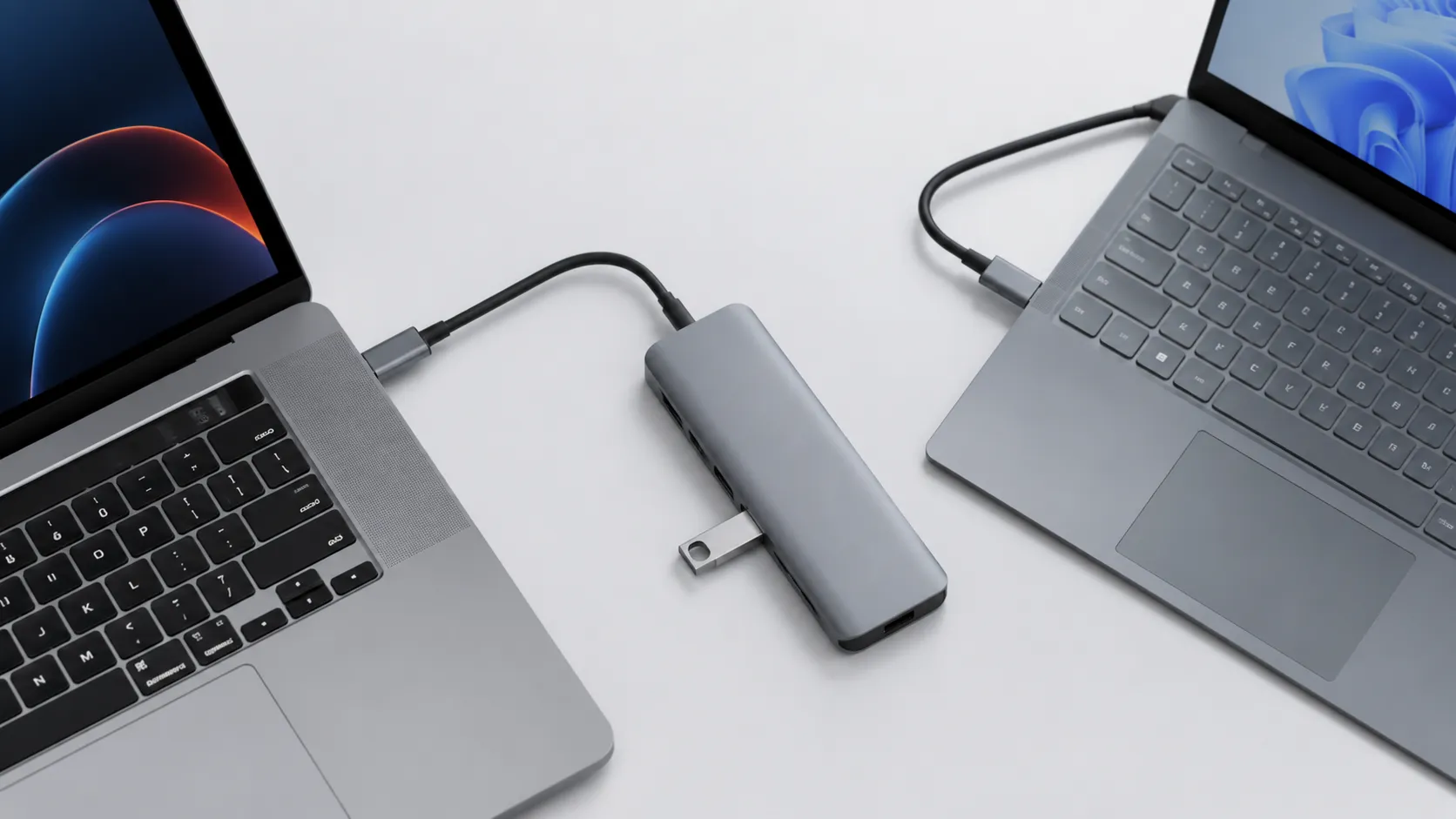
For direct Mac-to-Windows transfers without a USB drive, a Thunderbolt or USB-C cable can connect the two machines if you put the Mac into Target Disk Mode. Target Disk Mode is a macOS feature that makes the Mac appear as an external drive to another computer. Hold T during Mac startup to activate it. Note that Target Disk Mode does not work on Apple Silicon Macs when connecting to a Windows PC, because Windows cannot read the APFS file system that Apple Silicon Macs use by default.
Transferring files from Mac to PC via USB-C is practical for one-time large transfers. A USB 3.2 Gen 2 connection delivers real-world speeds of 800 MB/s to 900 MB/s, compared to 100 MB/s to 130 MB/s over a typical gigabit ethernet connection.
moving music files from iPhone to Mac before copying to Windows
Method 4: Third-Party Software
Third-party tools add value in specific scenarios: automated scheduled syncs, transfers over slow or unreliable networks, or situations where SMB sharing proves unstable after OS updates.
| App | Price | Platform | Key Feature | Ideal Use Case |
|---|---|---|---|---|
| FTP Disk (Mac) | Free tier available | Mac client, any FTP server | FTP/SFTP protocol | Secure transfers over internet |
| Mountain Duck | $39 one-time | Mac and Windows | Mounts cloud/FTP as local drive | Power users managing multiple servers |
| Resilio Sync | Free (personal) | Mac and Windows | P2P sync, no cloud middleman | Large local transfers without cloud storage |
| AnyTrans | $39.99/year | Mac | Broad device transfer support | Users migrating from iPhone to Windows |
Resilio Sync deserves attention for large file transfers. It uses BitTorrent technology to sync directly between devices on the same network, bypassing cloud servers entirely. In hands-on testing with a 20 GB video project, Resilio Sync completed the transfer over Wi-Fi in roughly the same time as a direct SMB connection, but with a simpler setup for users unfamiliar with Windows network configuration.
Historically, some users relied on Acronis File Connect to improve AFP performance to servers, but AFP is deprecated in current macOS versions. SMB 3.0 is now the correct protocol for Mac-to-Windows server connections.
recording your Mac screen to document the transfer setup process
Troubleshooting Common Mac-Windows File Sharing Issues
Network file sharing between macOS and Windows 11 fails for a predictable set of reasons. Most issues trace back to three categories: discovery, authentication, and permissions.
Mac not visible in Windows Network: Windows 11 suppresses network discovery on Public network profiles. Open Settings, Network and Internet, and change the network type to Private. Also confirm that the Function Discovery Provider Host and Function Discovery Resource Publication services are running in Windows Services (search services.msc in the Start menu).
Windows PC not visible in Mac Finder sidebar: The Mac’s Finder sidebar shows nearby computers under Network, but this relies on Bonjour and SMB browsing. If the Windows PC does not appear, connect manually via Cmd+K and type the Windows IP address directly. A static IP address on the Windows machine prevents the IP from changing between sessions.
Permission denied errors: When the Mac connects to a Windows share, it uses the Windows account credentials. Confirm the shared folder’s permissions in Windows include the account being used. On the Mac side, the SMB-enabled account must have a password (macOS accounts without passwords cannot authenticate over SMB).
Slow transfer speeds: SMB over Wi-Fi between a Mac and Windows PC typically delivers 20 MB/s to 50 MB/s on a modern 802.11ac network. If speeds are significantly lower, check that both devices are connected to the 5 GHz band rather than 2.4 GHz. Switching to ethernet raises real-world speeds to 100 MB/s to 115 MB/s on a gigabit network.
Security Considerations for Cross-Platform File Sharing
File sharing between Mac and Windows introduces attack surface if configured carelessly. These practices reduce risk without adding complexity.
SMB 3.0, which macOS Sequoia uses by default, encrypts data in transit using AES-128-CCM. Confirm your Mac is not falling back to SMB 1.0, a legacy version with known vulnerabilities, by opening Terminal and running smbutil statshares -a. The output shows the protocol version for each active connection.
Create a dedicated user account on the Mac specifically for Windows sharing, rather than sharing your primary account credentials. Set that account’s permissions to read-only on shared folders unless write access is genuinely required. This limits exposure if the credentials are compromised.
For transfers over the internet rather than a local network, use SFTP (SSH File Transfer Protocol) or a zero-knowledge cloud service like Tresorit rather than SMB, which is not designed for internet-facing connections.
customizing your Mac environment for a more consistent cross-platform workflow
Choosing the Right Method for Your Situation
The correct method depends on three variables: frequency of transfer, file size, and whether the machines share a local network.
| Scenario | Recommended Method | Why |
|---|---|---|
| Daily sync of working documents | Cloud storage (Google Drive or OneDrive) | Automatic, no manual steps |
| One-time transfer of 50+ GB | ExFAT USB drive or direct USB-C | Fastest throughput, no network dependency |
| Regular access to shared folders on LAN | SMB network sharing | Native, free, works with mapped drive |
| Secure transfer over internet | SFTP or encrypted cloud (Tresorit) | SMB is not safe over open internet |
| Unstable network, large files | Resilio Sync | Resilient P2P transfer |
For most home users who share a Wi-Fi network, SMB file sharing configured once and mapped as a persistent drive letter in Windows is the most efficient long-term setup. Cloud storage is the better answer when the two machines are in different locations or when automatic sync matters more than raw speed.
Key Takeaways
- SMB file sharing is built into macOS Sequoia and Windows 11 at no cost. Enable it in System Settings under Sharing on the Mac and map it as a network drive in Windows for persistent access.
- ExFAT is the correct file system for USB drives shared between Mac and Windows. It handles files over 4 GB and requires no extra drivers on either OS.
- Windows 11’s Public network profile blocks discovery by default. Switching to Private resolves the most common issue where the two machines cannot see each other.
- Cloud storage (Google Drive at 15 GB free, or OneDrive with Microsoft 365) is the lowest-friction option for users who do not share a local network.
- SMB 3.0 encrypts transfers in transit, but create a dedicated sharing account with a strong password rather than exposing your primary macOS credentials to Windows.
Frequently Asked Questions
Why can’t my Mac see my Windows PC on the network?
The most common cause is that the two machines are on different subnets or one has its firewall blocking SMB traffic on port 445. On Windows 11, open Settings, go to Network and Sharing Center, and make sure Network Discovery and File and Printer Sharing are both enabled for your active network profile. On the Mac side, confirm File Sharing is toggled on in System Settings under General, then Sharing.
What file system should I use on a USB drive shared between Mac and Windows?
ExFAT is the safest choice. macOS Sequoia and Windows 11 both read and write ExFAT natively, and it supports files larger than 4 GB, which FAT32 cannot handle. Avoid NTFS for a shared drive because macOS can only read NTFS by default, not write to it, without third-party software.
Is SMB file sharing between Mac and Windows secure on a home network?
SMB 3.0 and later, which macOS Sequoia uses by default, includes AES encryption in transit. The main risk on a home network is using a weak password for the shared user account. Create a dedicated sharing account with a strong password and limit it to read-only access unless write permission is genuinely needed.
Can I transfer files between Mac and Windows without a network or USB drive?
Yes. Bluetooth file transfer works for small files: on the Mac, open Bluetooth File Exchange from Applications, Utilities, and initiate a send to a paired Windows device. Speed is slow, typically under 3 MB/s, so it is only practical for documents and small images. Cloud storage is a better option for anything larger.
Does Migration Assistant work for moving files from Windows to Mac?
Migration Assistant can move user data, documents, and some settings from a Windows PC to a Mac, but real-world reports show it is unreliable for large or complex migrations and occasionally stalls without a clear error. For a straightforward file transfer rather than a full migration, SMB network sharing or an ExFAT USB drive is more dependable.
Recommended reading
Best Free Image Viewer for Mac in 2025: 7 Apps Ranked
Find the best free image viewer for Mac in 2025. We compare Preview, Pixea, XnView MP, qView, and more on speed, format support, and RAW handling.
Best Free Screen Recorder for Mac in 2025
Find the best free screen recorder for Mac: built-in tools, no-watermark third-party apps, OBS Studio setup, and audio capture tips for every skill level.
Best Mac Themes 2025: Customize macOS Like a Pro
Discover the best Mac themes, tools, and customization methods for macOS. Wallpapers, icon packs, widgets, dark mode tips, and app recommendations.